<?xml version="1.0" encoding="utf-8"?>
<feed xmlns="http://www.w3.org/2005/Atom">
  <title>白鲸</title>
  
  
  <link href="https://blog.helijike.eu.org/atom.xml" rel="self"/>
  
  <link href="https://blog.helijike.eu.org/"/>
  <updated>2026-05-20T10:18:18.560Z</updated>
  <id>https://blog.helijike.eu.org/</id>
  
  <author>
    <name>鲸落</name>
    
  </author>
  
  <generator uri="https://hexo.io/">Hexo</generator>
  
  <entry>
    <title>Hexo 博客上传同步指南</title>
    <link href="https://blog.helijike.eu.org/posts/c4d8e6b2.html"/>
    <id>https://blog.helijike.eu.org/posts/c4d8e6b2.html</id>
    <published>2026-05-19T16:50:00.000Z</published>
    <updated>2026-05-20T10:18:18.560Z</updated>
    
    <content type="html"><![CDATA[<h1 id="Hexo-博客上传同步指南"><a href="#Hexo-博客上传同步指南" class="headerlink" title="Hexo 博客上传同步指南"></a>Hexo 博客上传同步指南</h1><blockquote><p>我的博客分两个仓库：</p><ul><li><a href="https://github.com/SEYYl/hexo_blog-source"><code>hexo_blog-source</code></a> — 存源码（文章、主题、配置）</li><li><a href="https://github.com/SEYYl/hexo_blog"><code>hexo_blog</code></a> — 存生成后的静态文件（部署到 Pages）</li></ul></blockquote><p>每次写完文章，要同步两个地方。</p><hr><h2 id="写完后要做的事"><a href="#写完后要做的事" class="headerlink" title="写完后要做的事"></a>写完后要做的事</h2><figure class="highlight bash"><table><tr><td class="gutter"><pre><span class="line">1</span><br><span class="line">2</span><br><span class="line">3</span><br><span class="line">4</span><br><span class="line">5</span><br><span class="line">6</span><br><span class="line">7</span><br><span class="line">8</span><br><span class="line">9</span><br><span class="line">10</span><br><span class="line">11</span><br><span class="line">12</span><br><span class="line">13</span><br><span class="line">14</span><br></pre></td><td class="code"><pre><span class="line"><span class="comment"># 1. 生成静态文件</span></span><br><span class="line">hexo g</span><br><span class="line"></span><br><span class="line"><span class="comment"># 2. 本地预览（可选）</span></span><br><span class="line">hexo s</span><br><span class="line"><span class="comment"># 打开 http://localhost:4000 看看效果</span></span><br><span class="line"></span><br><span class="line"><span class="comment"># 3. 部署到 Pages（推送 public 到 hexo_blog）</span></span><br><span class="line">hexo d</span><br><span class="line"></span><br><span class="line"><span class="comment"># 4. 推送源码到 hexo_blog-source</span></span><br><span class="line">git add -A</span><br><span class="line">git commit -m <span class="string">&quot;新文章：xxx&quot;</span></span><br><span class="line">git push origin main</span><br></pre></td></tr></table></figure><hr><h2 id="流程拆解"><a href="#流程拆解" class="headerlink" title="流程拆解"></a>流程拆解</h2><h3 id="hexo-g-—-生成"><a href="#hexo-g-—-生成" class="headerlink" title="hexo g — 生成"></a><code>hexo g</code> — 生成</h3><p>把 Markdown 文章编译成 HTML，输出到 <code>public/</code> 目录。</p><h3 id="hexo-d-—-部署"><a href="#hexo-d-—-部署" class="headerlink" title="hexo d — 部署"></a><code>hexo d</code> — 部署</h3><p>把 <code>public/</code> 目录推送到 <code>hexo_blog</code> 仓库（已在 <code>_config.yml</code> 中配置好），Cloudflare Pages 检测到更新后自动部署。</p><h3 id="git-push-origin-main-—-保存源码"><a href="#git-push-origin-main-—-保存源码" class="headerlink" title="git push origin main — 保存源码"></a><code>git push origin main</code> — 保存源码</h3><p>把源文件（文章、图片、配置等）推送到 <code>hexo_blog-source</code>，防止丢了。</p><hr><h2 id="只用记住这四行"><a href="#只用记住这四行" class="headerlink" title="只用记住这四行"></a>只用记住这四行</h2><figure class="highlight bash"><table><tr><td class="gutter"><pre><span class="line">1</span><br><span class="line">2</span><br><span class="line">3</span><br><span class="line">4</span><br><span class="line">5</span><br></pre></td><td class="code"><pre><span class="line">hexo g          <span class="comment"># 生成</span></span><br><span class="line">hexo d          <span class="comment"># 部署到 Pages</span></span><br><span class="line">git add -A      <span class="comment"># 收集源码改动</span></span><br><span class="line">git commit -m <span class="string">&quot;新文章&quot;</span>  <span class="comment"># 打包</span></span><br><span class="line">git push origin main    <span class="comment"># 推送到源码仓库</span></span><br></pre></td></tr></table></figure><blockquote><p>顺序不能乱：先 <code>hexo g &amp;&amp; hexo d</code>，再 <code>git push</code>。</p></blockquote><hr><h2 id="补：从源码仓库恢复博客"><a href="#补：从源码仓库恢复博客" class="headerlink" title="补：从源码仓库恢复博客"></a>补：从源码仓库恢复博客</h2><p>换了电脑或重装系统后：</p><figure class="highlight bash"><table><tr><td class="gutter"><pre><span class="line">1</span><br><span class="line">2</span><br><span class="line">3</span><br></pre></td><td class="code"><pre><span class="line">git <span class="built_in">clone</span> https://github.com/SEYYl/hexo_blog-source.git</span><br><span class="line"><span class="built_in">cd</span> hexo_blog-source</span><br><span class="line">npm install</span><br></pre></td></tr></table></figure><p>然后就能继续写文章了。</p>]]></content>


    <summary type="html">&lt;h1 id=&quot;Hexo-博客上传同步指南&quot;&gt;&lt;a href=&quot;#Hexo-博客上传同步指南&quot; class=&quot;headerlink&quot; title=&quot;Hexo 博客上传同步指南&quot;&gt;&lt;/a&gt;Hexo 博客上传同步指南&lt;/h1&gt;&lt;blockquote&gt;
&lt;p&gt;我的博客分两个仓库：&lt;/p</summary>


    <category term="教程" scheme="https://blog.helijike.eu.org/categories/%E6%95%99%E7%A8%8B/"/>
    
    
    <category term="Git" scheme="https://blog.helijike.eu.org/tags/Git/"/>
    
    <category term="GitHub" scheme="https://blog.helijike.eu.org/tags/GitHub/"/>
    
    <category term="Hexo" scheme="https://blog.helijike.eu.org/tags/Hexo/"/>
    
  </entry>
  
  <entry>
    <title>Git 三连操作备忘</title>
    <link href="https://blog.helijike.eu.org/posts/b2c8f4a3.html"/>
    <id>https://blog.helijike.eu.org/posts/b2c8f4a3.html</id>
    <published>2026-05-19T16:45:00.000Z</published>
    <updated>2026-05-20T10:18:18.577Z</updated>
    
    <content type="html"><![CDATA[<h1 id="Git-三连操作备忘"><a href="#Git-三连操作备忘" class="headerlink" title="Git 三连操作备忘"></a>Git 三连操作备忘</h1><blockquote><p>太久没动怕忘了，记在这里</p></blockquote><p>其实就是三步：</p><figure class="highlight bash"><table><tr><td class="gutter"><pre><span class="line">1</span><br><span class="line">2</span><br><span class="line">3</span><br></pre></td><td class="code"><pre><span class="line">git add -A        <span class="comment"># 1. 收集</span></span><br><span class="line">git commit -m <span class="string">&quot;…&quot;</span> <span class="comment"># 2. 打包</span></span><br><span class="line">git push          <span class="comment"># 3. 发货</span></span><br></pre></td></tr></table></figure><hr><h2 id="拆开看"><a href="#拆开看" class="headerlink" title="拆开看"></a>拆开看</h2><h3 id="git-add-A"><a href="#git-add-A" class="headerlink" title="git add -A"></a><code>git add -A</code></h3><p>告诉 Git “这些文件的改动我要了”。</p><ul><li>新文件、修改、删除，全包</li><li>也可以只加某个文件：<code>git add app.py</code></li></ul><h3 id="git-commit-m-quot-…-quot"><a href="#git-commit-m-quot-…-quot" class="headerlink" title="git commit -m &quot;…&quot;"></a><code>git commit -m &quot;…&quot;</code></h3><p>打成个包，写个标签说明改了啥。</p><ul><li>这个包<strong>只在本地</strong>，还没到 GitHub</li><li>说明文字写清楚改了什么东西，方便以后翻历史</li></ul><h3 id="git-push"><a href="#git-push" class="headerlink" title="git push"></a><code>git push</code></h3><p>把本地的包推到 GitHub 远程仓库。</p><ul><li>如果配置了 Render 自动部署，推到 GitHub 后它会自动重新部署</li></ul><hr><h2 id="完整流程（平时用的）"><a href="#完整流程（平时用的）" class="headerlink" title="完整流程（平时用的）"></a>完整流程（平时用的）</h2><figure class="highlight bash"><table><tr><td class="gutter"><pre><span class="line">1</span><br><span class="line">2</span><br><span class="line">3</span><br><span class="line">4</span><br><span class="line">5</span><br><span class="line">6</span><br><span class="line">7</span><br><span class="line">8</span><br><span class="line">9</span><br></pre></td><td class="code"><pre><span class="line"><span class="comment"># 先看看改了哪些文件</span></span><br><span class="line">git status</span><br><span class="line"></span><br><span class="line"><span class="comment"># 确认没问题，全部打包</span></span><br><span class="line">git add -A</span><br><span class="line">git commit -m <span class="string">&quot;改了什么写这里&quot;</span></span><br><span class="line"></span><br><span class="line"><span class="comment"># 推到 GitHub</span></span><br><span class="line">git push</span><br></pre></td></tr></table></figure><hr><h2 id="想回滚怎么办"><a href="#想回滚怎么办" class="headerlink" title="想回滚怎么办"></a>想回滚怎么办</h2><figure class="highlight bash"><table><tr><td class="gutter"><pre><span class="line">1</span><br><span class="line">2</span><br><span class="line">3</span><br><span class="line">4</span><br><span class="line">5</span><br></pre></td><td class="code"><pre><span class="line"><span class="comment"># 看历史版本</span></span><br><span class="line">git <span class="built_in">log</span> --oneline</span><br><span class="line"></span><br><span class="line"><span class="comment"># 回到某个版本（本地）</span></span><br><span class="line">git reset --hard &lt;版本号&gt;</span><br></pre></td></tr></table></figure><p><code>版本号</code> 就是从 <code>git log</code> 看到的那串字符，比如 <code>a1b2c3d</code>。</p><hr><h2 id="一句话总结"><a href="#一句话总结" class="headerlink" title="一句话总结"></a>一句话总结</h2><p><strong><code>add</code> 收集 → <code>commit</code> 打包 → <code>push</code> 发货。</strong></p>]]></content>


    <summary type="html">&lt;h1 id=&quot;Git-三连操作备忘&quot;&gt;&lt;a href=&quot;#Git-三连操作备忘&quot; class=&quot;headerlink&quot; title=&quot;Git 三连操作备忘&quot;&gt;&lt;/a&gt;Git 三连操作备忘&lt;/h1&gt;&lt;blockquote&gt;
&lt;p&gt;太久没动怕忘了，记在这里&lt;/p&gt;
&lt;/blockq</summary>


    <category term="教程" scheme="https://blog.helijike.eu.org/categories/%E6%95%99%E7%A8%8B/"/>
    
    
    <category term="Git" scheme="https://blog.helijike.eu.org/tags/Git/"/>
    
    <category term="GitHub" scheme="https://blog.helijike.eu.org/tags/GitHub/"/>
    
  </entry>
  
  <entry>
    <title>我造了个叫 Markdownify 的小工具</title>
    <link href="https://blog.helijike.eu.org/posts/a7f3e2d1.html"/>
    <id>https://blog.helijike.eu.org/posts/a7f3e2d1.html</id>
    <published>2026-05-19T16:30:00.000Z</published>
    <updated>2026-05-20T10:18:28.590Z</updated>
    
    <content type="html"><![CDATA[<h1 id="我造了个叫-Markdownify-的小工具"><a href="#我造了个叫-Markdownify-的小工具" class="headerlink" title="我造了个叫 Markdownify 的小工具"></a>我造了个叫 Markdownify 的小工具</h1><blockquote><p>HTML / 网址 / 纯文本 → Markdown，一键搞定</p></blockquote><p>前段时间写博客、做笔记的时候老碰到一个麻烦：从网页复制内容到 Markdown 编辑器，格式全乱。要么粘出来一堆 HTML 标签，要么图片链接全丢了。</p><p>网上搜了一圈类似的工具，要么要注册，要么有广告，要么转换质量不行。于是我自己搞了一个——<strong>Markdownify</strong>。</p><h2 id="它是干什么的"><a href="#它是干什么的" class="headerlink" title="它是干什么的"></a>它是干什么的</h2><p>很简单：<strong>把东西变成 Markdown</strong>。支持三种输入方式：</p><ul><li><strong>HTML 代码</strong> — 粘贴直接转</li><li><strong>网页链接</strong> — 自动抓取并提取正文</li><li><strong>纯文本</strong> — 自动识别标题/列表/段落</li></ul><h2 id="几个我觉得好用的功能"><a href="#几个我觉得好用的功能" class="headerlink" title="几个我觉得好用的功能"></a>几个我觉得好用的功能</h2><h3 id="智能粘贴"><a href="#智能粘贴" class="headerlink" title="智能粘贴"></a>智能粘贴</h3><p>复制一段内容往输入框一贴，它会自动判断：</p><ul><li>贴的是 <code>https://...</code> → 直接抓取网页转 Markdown</li><li>贴的是 <code>&lt;html&gt;</code> → 自动切到 HTML 模式</li><li>贴的是纯文字 → 自动切到文本模式</li></ul><p>全程不用手动切换，贴完就有了。</p><h3 id="批量-URL-转换"><a href="#批量-URL-转换" class="headerlink" title="批量 URL 转换"></a>批量 URL 转换</h3><p>写研究类文章的时候最有用。把一堆链接贴进去：</p><figure class="highlight plaintext"><table><tr><td class="gutter"><pre><span class="line">1</span><br><span class="line">2</span><br></pre></td><td class="code"><pre><span class="line">https://example.com/article1</span><br><span class="line">https://example.com/article2</span><br></pre></td></tr></table></figure><p>一次全抓完，合并成一个 Markdown 文件，每个来源带标题和链接。</p><h3 id="正文提取"><a href="#正文提取" class="headerlink" title="正文提取"></a>正文提取</h3><p>抓网页的时候自动去掉导航栏、广告、侧边栏，只留文章主体。用的是 readability 算法，和浏览器阅读模式同款。</p><h3 id="纯文本模式"><a href="#纯文本模式" class="headerlink" title="纯文本模式"></a>纯文本模式</h3><p>有时候不是 HTML，就是一段纯文字：</p><p>``text</p><h1 id="标题"><a href="#标题" class="headerlink" title="标题"></a>标题</h1><p>这是一段文字。</p><ul><li>列表项 1</li><li>列表项 2<figure class="highlight plaintext"><table><tr><td class="gutter"><pre><span class="line">1</span><br><span class="line">2</span><br><span class="line">3</span><br><span class="line">4</span><br><span class="line">5</span><br><span class="line">6</span><br><span class="line">7</span><br><span class="line">8</span><br><span class="line">9</span><br><span class="line">10</span><br><span class="line">11</span><br><span class="line">12</span><br><span class="line">13</span><br><span class="line">14</span><br><span class="line">15</span><br><span class="line">16</span><br><span class="line">17</span><br><span class="line">18</span><br><span class="line">19</span><br><span class="line">20</span><br><span class="line">21</span><br><span class="line">22</span><br><span class="line">23</span><br><span class="line">24</span><br><span class="line">25</span><br><span class="line">26</span><br><span class="line">27</span><br><span class="line">28</span><br><span class="line">29</span><br><span class="line">30</span><br><span class="line">31</span><br><span class="line">32</span><br><span class="line">33</span><br><span class="line">34</span><br></pre></td><td class="code"><pre><span class="line"></span><br><span class="line">它会自动转成格式化的 HTML 和 Markdown，段落用 `&lt;p&gt;` 包，列表用 `&lt;ul&gt;`，标题用 `&lt;h1&gt;`。</span><br><span class="line"></span><br><span class="line">## 长什么样</span><br><span class="line"></span><br><span class="line">界面有三套主题：</span><br><span class="line"></span><br><span class="line">- **浅色模式** — 默认的干净白底</span><br><span class="line">- **深色模式** — 护眼暗色</span><br><span class="line">- **赛博科技** — 蓝紫冷色风格（我最喜欢这个）</span><br><span class="line"></span><br><span class="line">布局支持堆叠和并排，宽屏下并排显示，左边编辑右边预览，效率很高。</span><br><span class="line"></span><br><span class="line">## 技术栈</span><br><span class="line"></span><br><span class="line">后端 Flask，前端原生 JS（没有框架，够用就行），核心库是 `html2text` 和 `readability-lxml`。</span><br><span class="line"></span><br><span class="line">项目开源在 GitHub：**[SEYYl/Markdownify](https://github.com/SEYYl/Markdownify)**</span><br><span class="line"></span><br><span class="line">## 在线体验</span><br><span class="line"></span><br><span class="line">👉 [https://html-to-md-qfrj.onrender.com](https://html-to-md-qfrj.onrender.com)</span><br><span class="line"></span><br><span class="line">Render 免费实例可能会休眠，第一次打开等几秒就好。</span><br><span class="line"></span><br><span class="line">## 本地跑</span><br><span class="line"></span><br><span class="line">```bash</span><br><span class="line">git clone https://github.com/SEYYl/Markdownify.git</span><br><span class="line">cd Markdownify</span><br><span class="line">python -m venv venv</span><br><span class="line">source venv/bin/activate</span><br><span class="line">pip install -r requirements.txt</span><br><span class="line">python app.py</span><br></pre></td></tr></table></figure></li></ul><p>打开 <code>http://localhost:5000</code> 就能用。</p><p>也可以用 Docker：</p><figure class="highlight bash"><table><tr><td class="gutter"><pre><span class="line">1</span><br><span class="line">2</span><br></pre></td><td class="code"><pre><span class="line">docker build -t markdownify .</span><br><span class="line">docker run -d -p 5000:5000 markdownify</span><br></pre></td></tr></table></figure><h2 id="后记"><a href="#后记" class="headerlink" title="后记"></a>后记</h2><p>这个工具最初只是自己用用，后来越加越多功能——批量转换、正文提取、纯文本识别、历史记录、HTML 格式化……干脆认真做了个开源项目。</p><p>如果你也有类似的痛点，试试看。有用的话点个 Star ⭐</p>]]></content>


    <summary type="html">&lt;h1 id=&quot;我造了个叫-Markdownify-的小工具&quot;&gt;&lt;a href=&quot;#我造了个叫-Markdownify-的小工具&quot; class=&quot;headerlink&quot; title=&quot;我造了个叫 Markdownify 的小工具&quot;&gt;&lt;/a&gt;我造了个叫 Markdownify 的小</summary>


    <category term="工具" scheme="https://blog.helijike.eu.org/categories/%E5%B7%A5%E5%85%B7/"/>
    
    
    <category term="Flask" scheme="https://blog.helijike.eu.org/tags/Flask/"/>
    
    <category term="Markdown" scheme="https://blog.helijike.eu.org/tags/Markdown/"/>
    
    <category term="开源" scheme="https://blog.helijike.eu.org/tags/%E5%BC%80%E6%BA%90/"/>
    
    <category term="Python" scheme="https://blog.helijike.eu.org/tags/Python/"/>
    
  </entry>
  
  <entry>
    <title>WordPress博客一步一步部署教程</title>
    <link href="https://blog.helijike.eu.org/posts/87b19224.html"/>
    <id>https://blog.helijike.eu.org/posts/87b19224.html</id>
    <published>2026-04-26T07:25:35.000Z</published>
    <updated>2026-05-18T16:42:59.037Z</updated>
    
    <content type="html"><![CDATA[<h1 id="WordPress-博客一步一步部署教程（小白友好版）"><a href="#WordPress-博客一步一步部署教程（小白友好版）" class="headerlink" title="WordPress 博客一步一步部署教程（小白友好版）"></a>WordPress 博客一步一步部署教程（小白友好版）</h1><p>我这次使用 <strong>WordPress</strong> 这个经典博客项目来一步步讲解，如何部署一个属于自己的博客。  </p><p>虽然这些内容看起来很基础，但对不同领域的小白来说还是有一定难度的。所以我写了这篇超详细教程，每一步都配有设置步骤和截图说明，力求不遗漏任何细节，让小白也能一遍就学会怎么搭建和部署。</p><hr><h2 id="第一阶段：配置-Cloudflare-CDN-与-SSL-证书"><a href="#第一阶段：配置-Cloudflare-CDN-与-SSL-证书" class="headerlink" title="第一阶段：配置 Cloudflare CDN 与 SSL 证书"></a>第一阶段：配置 Cloudflare CDN 与 SSL 证书</h2><p>在开始操作服务器之前，我们先把域名解析和 HTTPS 加密处理好，避免后面出现重定向错误。</p><h3 id="1-域名解析"><a href="#1-域名解析" class="headerlink" title="1. 域名解析"></a>1. 域名解析</h3><ol><li>登录 Cloudflare 控制台，进入你的域名管理页面。</li><li>找到 <strong>DNS → 记录</strong>。</li><li>添加两条 <strong>A 记录</strong>：<ul><li><code>@</code>（主域名）</li><li><code>www</code></li></ul></li><li>两条记录都指向你的 VPS IP 地址。</li><li><strong>关键点</strong>：确保记录后面的黄色云朵图标是<strong>打开状态</strong>（启用 Cloudflare CDN 服务）。</li></ol><h3 id="2-生成源服务器证书"><a href="#2-生成源服务器证书" class="headerlink" title="2. 生成源服务器证书"></a>2. 生成源服务器证书</h3><ol><li>在 Cloudflare 左侧菜单找到 <strong>SSL/TLS → 源服务器</strong>。</li><li>点击“创建证书”按钮，保持默认设置生成即可。</li><li>生成后会显示两段内容：<ul><li>PEM（证书）</li><li>KEY（私钥）</li></ul></li><li>把这两段内容<strong>复制并临时保存到记事本</strong>，后面马上要用。</li></ol><hr><h2 id="第二阶段：宝塔环境配置"><a href="#第二阶段：宝塔环境配置" class="headerlink" title="第二阶段：宝塔环境配置"></a>第二阶段：宝塔环境配置</h2><p>我这里为了节约步骤，直接使用宝塔的<strong>一键部署</strong>功能，里面有很多常见网站的一键式部署模板，非常适合小白。</p><h3 id="1-添加站点"><a href="#1-添加站点" class="headerlink" title="1. 添加站点"></a>1. 添加站点</h3><ul><li>点击左侧导航栏的 <strong>网站</strong>。</li><li>在“PHP 项目”分类下，点击<strong>添加站点</strong>。</li></ul><h3 id="2-一键部署-WordPress"><a href="#2-一键部署-WordPress" class="headerlink" title="2. 一键部署 WordPress"></a>2. 一键部署 WordPress</h3><ol><li>切换到 <strong>一键部署</strong> 选项卡。</li><li>选择 <strong>WordPress 6.9</strong>（版本可能不是最新的，后续可自行升级）。</li><li>在“域名”输入框中填入你的域名。</li><li>其他选项保持默认，点击部署。</li></ol><p>部署完成后会弹出<strong>数据库用户名和密码</strong>，请<strong>截图保存</strong>。<br>如果不小心关掉了也没关系，后续可以在“数据库”菜单里找到对应的数据库，获取账号和密码。</p><h3 id="3-SSL-证书配置"><a href="#3-SSL-证书配置" class="headerlink" title="3. SSL 证书配置"></a>3. SSL 证书配置</h3><ol><li>点击刚刚创建好的网站，进入<strong>设置</strong>。</li><li>找到 <strong>SSL</strong> 菜单。</li><li>把刚才在 Cloudflare 生成的<strong>证书（PEM）</strong>和<strong>私钥（KEY）</strong>分别复制到对应位置（注意不要搞反）。</li><li>开启<strong>强制 SSL</strong>，让网站全局走 HTTPS 协议。</li></ol><h3 id="4-设置伪静态规则"><a href="#4-设置伪静态规则" class="headerlink" title="4. 设置伪静态规则"></a>4. 设置伪静态规则</h3><ol><li>找到 <strong>伪静态</strong> 菜单。</li><li>在下拉列表中选择 <strong>WordPress</strong>。</li><li>点击保存。</li></ol><hr><h2 id="第三阶段：安装-WordPress"><a href="#第三阶段：安装-WordPress" class="headerlink" title="第三阶段：安装 WordPress"></a>第三阶段：安装 WordPress</h2><p>后面就是点点点就能完成的简单操作了。</p><h3 id="1-选择语言"><a href="#1-选择语言" class="headerlink" title="1. 选择语言"></a>1. 选择语言</h3><p>访问你的域名，会自动跳转到 WordPress 安装向导。<br>选择 <strong>简体中文</strong> → 点击继续。</p><h3 id="2-欢迎页面"><a href="#2-欢迎页面" class="headerlink" title="2. 欢迎页面"></a>2. 欢迎页面</h3><p>直接点击 <strong>继续</strong>。</p><h3 id="3-填写数据库信息"><a href="#3-填写数据库信息" class="headerlink" title="3. 填写数据库信息"></a>3. 填写数据库信息</h3><ul><li>数据库名</li><li>用户名</li><li>密码<br>其他保持默认即可。</li></ul><blockquote><p><strong>补充</strong>：如果没保存数据库账号密码也没关系。<br>进入宝塔左侧 <strong>数据库</strong> 菜单，找到和你域名一致的数据库，复制账号（表名和账号名一致）和密码。</p></blockquote><h3 id="4-运行安装"><a href="#4-运行安装" class="headerlink" title="4. 运行安装"></a>4. 运行安装</h3><p>数据库信息填写正确后，会看到“不错。您完成了安装过程…”的提示，点击 <strong>运行安装程序</strong>。</p><h3 id="5-设置网站基本信息"><a href="#5-设置网站基本信息" class="headerlink" title="5. 设置网站基本信息"></a>5. 设置网站基本信息</h3><p>填写以下内容：</p><ul><li>站点标题</li><li>管理员用户名</li><li>登录密码（自动生成的密码请务必保存好）</li><li>邮箱</li></ul><h3 id="6-登录后台"><a href="#6-登录后台" class="headerlink" title="6. 登录后台"></a>6. 登录后台</h3><p>使用刚才设置的账号（或邮箱+密码）登录。<br>登录成功后即可进入 WordPress 后台，开始设置自己的个人内容啦！</p><hr><h2 id="第四阶段：配置自动备份（必须做！）"><a href="#第四阶段：配置自动备份（必须做！）" class="headerlink" title="第四阶段：配置自动备份（必须做！）"></a>第四阶段：配置自动备份（必须做！）</h2><p>网站搭建好后，<strong>数据备份是重中之重</strong>。我们用宝塔的计划任务功能，每天自动备份网站文件和数据库。</p><h3 id="1-添加网站文件备份"><a href="#1-添加网站文件备份" class="headerlink" title="1. 添加网站文件备份"></a>1. 添加网站文件备份</h3><ol><li>找到 <strong>计划任务</strong> 菜单。</li><li>选择 <strong>备份网站</strong>。</li><li>默认备份所有网站，保留最新 <strong>3 份</strong>（节省硬盘空间）。</li></ol><h3 id="2-添加数据库备份"><a href="#2-添加数据库备份" class="headerlink" title="2. 添加数据库备份"></a>2. 添加数据库备份</h3><p>同样方式，选择 <strong>备份数据库</strong>，设置默认参数后确认。</p><hr><p>到这里，你的 <strong>WordPress 网站就已经部署完毕</strong>！</p><ul><li>已配置 Cloudflare CDN 加速  </li><li>全站 HTTPS 加密  </li><li>完善的伪静态规则  </li><li>每天自动备份的安全保障  </li></ul><p>后续安装插件、主题优化等操作，就看你有没有时间慢慢折腾啦～  </p>]]></content>


    <summary type="html">&lt;h1 id=&quot;WordPress-博客一步一步部署教程（小白友好版）&quot;&gt;&lt;a href=&quot;#WordPress-博客一步一步部署教程（小白友好版）&quot; class=&quot;headerlink&quot; title=&quot;WordPress 博客一步一步部署教程（小白友好版）&quot;&gt;&lt;/a&gt;WordP</summary>


    <category term="教程" scheme="https://blog.helijike.eu.org/categories/%E6%95%99%E7%A8%8B/"/>
    
    <category term="WordPress" scheme="https://blog.helijike.eu.org/categories/%E6%95%99%E7%A8%8B/WordPress/"/>
    
    
    <category term="建站" scheme="https://blog.helijike.eu.org/tags/%E5%BB%BA%E7%AB%99/"/>
    
    <category term="WordPress" scheme="https://blog.helijike.eu.org/tags/WordPress/"/>
    
  </entry>
  
  <entry>
    <title>配置七牛云 Kodo 存储</title>
    <link href="https://blog.helijike.eu.org/posts/b86c2edc.html"/>
    <id>https://blog.helijike.eu.org/posts/b86c2edc.html</id>
    <published>2026-04-21T16:49:17.000Z</published>
    <updated>2026-05-18T16:42:59.038Z</updated>
    
    <content type="html"><![CDATA[<h1 id="为博客图片配置七牛云-Kodo-存储，彻底杜绝盗刷流量"><a href="#为博客图片配置七牛云-Kodo-存储，彻底杜绝盗刷流量" class="headerlink" title="为博客图片配置七牛云 Kodo 存储，彻底杜绝盗刷流量"></a>为博客图片配置七牛云 Kodo 存储，彻底杜绝盗刷流量</h1><blockquote><p>记录一次从“公开空间”到“私有空间 + CDN 防盗链”的完整折腾过程</p></blockquote><p>我的博客（<a href="https://blog.nanyu.xin">blog.nanyu.xin</a>）使用的是 <strong>Anheyu</strong> 博客框架。随着文章越来越多，本地服务器的存储压力逐渐变大，于是决定把图片搬到云对象存储上。我选择了七牛云的 Kodo 服务，便宜、稳定，而且新用户有免费额度。</p><p>但是，<strong>对象存储最怕的就是盗刷流量</strong>——如果有人把你的图片链接贴到其他网站，或者直接用脚本疯狂请求，一天就能刷掉你几个月的套餐费用。为了避免这种情况，我需要一套比较完善的安全配置。</p><p>经过一番摸索（期间也遇到了一些坑），终于配置好了。下面是我的完整过程，希望对你有帮助。</p><h3 id="💎-我的部署环境"><a href="#💎-我的部署环境" class="headerlink" title="💎 我的部署环境"></a>💎 我的部署环境</h3><ul><li><p><strong>服务器管理面板</strong>：1Panel</p></li><li><p><strong>博客框架</strong>：Anheyu-app（基于 Golang + Vue3 构建）</p></li><li><p><strong>部署方式</strong>：Docker Compose</p></li></ul><h2 id="一、创建存储空间-——-第一步就选“私有”"><a href="#一、创建存储空间-——-第一步就选“私有”" class="headerlink" title="一、创建存储空间 —— 第一步就选“私有”"></a>一、创建存储空间 —— 第一步就选“私有”</h2><p>进入七牛云控制台 → 对象存储 Kodo → 新建空间。</p><p><strong>关键点</strong>：访问控制一定要选择 <strong>“私有”</strong>。如果选了“公开”，任何人都能直接访问你的图片，防盗链效果会大打折扣。</p><p>创建完成后，记下你的 <strong>空间名称</strong> 和 <strong>存储区域</strong>（比如我的是 <code>my-anheyu-tupian</code>，区域 <code>华南-广东</code>）。</p><h2 id="二、绑定自定义域名并配置-HTTPS"><a href="#二、绑定自定义域名并配置-HTTPS" class="headerlink" title="二、绑定自定义域名并配置 HTTPS"></a>二、绑定自定义域名并配置 HTTPS</h2><p>七牛云提供的测试域名（如 <code>xxx.clouddn.com</code>）有诸多限制，而且不支持私有空间的高级配置。<strong>强烈建议绑定自己的域名</strong>。</p><ol><li><p>在七牛云 Kodo 空间管理 → <strong>域名管理</strong> → 绑定你自己的域名，例如 <code>anheyutupian.nanyu.xin</code>。</p></li><li><p>按照提示去你的域名 DNS 服务商（如阿里云、腾讯云）添加 <strong>CNAME 记录</strong>，指向七牛云给出的地址。</p></li><li><p><strong>申请 SSL 证书</strong>：七牛云提供免费的 TrustAsia 单域名证书，有效期为 90 天。在 CDN 域名的 <strong>HTTPS 配置</strong> 中申请并绑定。</p><ul><li><p>注意：申请时需要添加一条 <strong>TXT 解析记录</strong> 验证域名所有权。添加后稍等几分钟，验证通过即可签发证书。</p></li><li><p><strong>证书签发后，务必开启 HTTPS</strong>，否则博客（如果用的是 HTTPS）会因为混合内容而拦截图片。</p></li></ul></li></ol><h2 id="三、CDN-访问控制-——-防盗链的核心"><a href="#三、CDN-访问控制-——-防盗链的核心" class="headerlink" title="三、CDN 访问控制 —— 防盗链的核心"></a>三、CDN 访问控制 —— 防盗链的核心</h2><p>图片存储的访问路径是：<strong>用户 → CDN 域名 → 七牛云私有存储空间</strong>。所以防盗链主要在 <strong>CDN 层</strong> 实现。</p><p>进入七牛云 <strong>CDN 控制台</strong> → 域名管理 → 找到你绑定的域名（例如 <code>anheyutupian.nanyu.xin</code>）→ <strong>访问控制</strong>。</p><h3 id="1-Referer-防盗链"><a href="#1-Referer-防盗链" class="headerlink" title="1. Referer 防盗链"></a>1. Referer 防盗链</h3><ul><li><p>模式选择 <strong>“白名单”</strong>。</p></li><li><p>填入你博客的域名：<code>blog.nanyu.xin</code> 以及 <code>*.nanyu.xin</code>（通配符可以匹配所有子域名）。</p></li><li><p><strong>禁止空 Referer</strong>：取消勾选“允许空 Referer”。这样直接粘贴图片链接到浏览器地址栏也会被拒绝（返回 403）。</p></li></ul><h3 id="2-回源鉴权-——-必须开启"><a href="#2-回源鉴权-——-必须开启" class="headerlink" title="2. 回源鉴权 —— 必须开启"></a>2. 回源鉴权 —— 必须开启</h3><p>因为你的存储空间是 <strong>私有</strong> 的，CDN 必须获得授权才能从空间拉取图片。所以 <strong>“回源鉴权”</strong> 一定要设置为 <strong>“已开启”</strong>。</p><p>如果这一步没开，你博客上的所有图片都会 403。</p><h3 id="3-IP-黑白名单（备用）"><a href="#3-IP-黑白名单（备用）" class="headerlink" title="3. IP 黑白名单（备用）"></a>3. IP 黑白名单（备用）</h3><p>目前可以不配置。如果以后发现某个 IP 疯狂刷流量，可以直接在这里拉黑。</p><h2 id="四、Anheyu-博客存储策略配置"><a href="#四、Anheyu-博客存储策略配置" class="headerlink" title="四、Anheyu 博客存储策略配置"></a>四、Anheyu 博客存储策略配置</h2><p>登录 Anheyu 博客后台（地址通常是 <code>https://你的博客域名/login</code>），找到存储策略配置的地方（一般在 <code>后台 -&gt; 系统管理 -&gt; 存储策略</code>，具体路径可参考官方文档）。</p><blockquote><p><strong>注意</strong>：由于我部署时使用了 <code>1Panel</code> 和 <code>Docker Compose</code>，因此在 Anheyu 后台填入的配置项与标准部署方式完全相同，具体取决于后台的表单字段。</p></blockquote><p>需要填写的关键项：</p><div class="table-container"><table><thead><tr><th>配置项</th><th>填写内容</th><th>说明</th></tr></thead><tbody><tr><td>存储空间</td><td>my-anheyu-tupian</td><td>你在七牛云创建的空间名称</td></tr><tr><td>存储区域</td><td>华南-广东</td><td>与创建时一致</td></tr><tr><td>AccessKey / SecretKey</td><td>从七牛云“密钥管理”获取</td><td>注意保密</td></tr><tr><td>访问域名</td><td><a href="https://anheyutupian.nanyu.xin">https://anheyutupian.nanyu.xin</a></td><td>绑定的自定义域名，必须带 https://</td></tr><tr><td>私有空间</td><td>开启</td><td>这个开关非常重要！如果不开启，Anheyu 不会生成带签名的链接，导致访问失败</td></tr><tr><td>存储根目录</td><td>/anheyu</td><td>可选，方便管理文件</td></tr></tbody></table></div><h2 id="五、踩坑与解决"><a href="#五、踩坑与解决" class="headerlink" title="五、踩坑与解决"></a>五、踩坑与解决</h2><h3 id="坑1：图片一直显示-“This-image-couldn’t-be-loaded”"><a href="#坑1：图片一直显示-“This-image-couldn’t-be-loaded”" class="headerlink" title="坑1：图片一直显示 “This image couldn’t be loaded”"></a>坑1：图片一直显示 “This image couldn’t be loaded”</h3><p><strong>原因</strong>：我忘记在 Anheyu 存储策略中开启 <strong>“私有空间”</strong> 开关。<br><strong>解决</strong>：打开开关，保存，刷新博客 → 图片恢复正常。</p><h3 id="坑2：HTTPS-证书验证失败"><a href="#坑2：HTTPS-证书验证失败" class="headerlink" title="坑2：HTTPS 证书验证失败"></a>坑2：HTTPS 证书验证失败</h3><p><strong>原因</strong>：申请证书时添加的 TXT 记录没有生效，或者主机记录写错了（应该是 <code>_dnsauth.anheyutupian</code>，而不是 <code>_dnsauth.anheyutupian.nanyu.xin</code>）。<br><strong>解决</strong>：去 DNS 管理后台仔细核对记录值，等待生效后重新验证。</p><h3 id="坑3：存储空间的-Referer-防盗链要不要开？"><a href="#坑3：存储空间的-Referer-防盗链要不要开？" class="headerlink" title="坑3：存储空间的 Referer 防盗链要不要开？"></a>坑3：存储空间的 Referer 防盗链要不要开？</h3><p><strong>不要开</strong>。因为你的存储空间已经是私有模式，并且 CDN 已经开启了回源鉴权。如果存储空间再开启 Referer 防盗链，CDN 的回源请求可能会因为没有 Referer 而被拒绝，导致图片 403。<strong>CDN 负责防盗链，存储空间只负责私有鉴权</strong>，各司其职即可。</p><h3 id="坑4：在-1Panel-中如何修改-docker-compose-yml-的环境变量？"><a href="#坑4：在-1Panel-中如何修改-docker-compose-yml-的环境变量？" class="headerlink" title="坑4：在 1Panel 中如何修改 docker-compose.yml 的环境变量？"></a>坑4：在 <code>1Panel</code> 中如何修改 <code>docker-compose.yml</code> 的环境变量？</h3><p><strong>原因</strong>：修改环境变量后，需要重启容器才能生效，但直接在 <code>1Panel</code> 界面操作有时容易遗漏。<br><strong>解决</strong>：进入 <code>1Panel</code> → <strong>容器</strong> → <strong>编排</strong>，找到你的 <code>anheyu</code> 编排，点击编辑，修改环境变量后保存，<code>1Panel</code> 会自动应用更改并重启服务。或者你也可以直接修改服务器上的 <code>.env</code> 文件，再在 <code>1Panel</code> 界面中重建应用。</p><h2 id="六、最终效果验证"><a href="#六、最终效果验证" class="headerlink" title="六、最终效果验证"></a>六、最终效果验证</h2><p>配置完成后，你可以做两个测试：</p><ol><li><p><strong>正常访问</strong>：打开你的博客文章，图片应该正常显示。</p></li><li><p><strong>盗链测试</strong>：复制一张图片的完整 URL，在浏览器的无痕模式中直接打开。此时因为 Referer 为空，且你设置了“禁止空 Referer”，所以应该返回 <strong>403 Forbidden</strong>。</p></li></ol><h2 id="七、总结"><a href="#七、总结" class="headerlink" title="七、总结"></a>七、总结</h2><p>现在的安全配置如下：</p><div class="table-container"><table><thead><tr><th>配置项</th><th>状态</th><th>作用</th></tr></thead><tbody><tr><td>存储空间访问控制</td><td>私有</td><td>杜绝公开访问</td></tr><tr><td>CDN 回源鉴权</td><td>已开启</td><td>允许 CDN 拉取私有空间文件</td></tr><tr><td>CDN Referer 防盗链</td><td>白名单 + 禁止空 Referer</td><td>只允许博客域名访问</td></tr><tr><td>CDN HTTPS</td><td>已开启 + 有效证书</td><td>避免混合内容拦截</td></tr><tr><td>Anheyu 存储策略私有空间</td><td>已开启</td><td>生成带签名的临时链接</td></tr></tbody></table></div><p>这套配置基本可以防止绝大多数恶意刷流量和盗链行为。当然，如果以后遇到更高级的攻击（比如伪造 Referer），还可以考虑开启 <strong>时间戳防盗链</strong> 或配置 <strong>IP 黑白名单</strong>，不过对于个人博客来说，目前已经足够安全了。</p><p>希望这篇博客能帮你少踩一些坑。如果你也使用 <code>Anheyu</code> + <code>七牛云</code>，照着配一遍，应该就能安心使用啦。</p><blockquote><p>博客框架：<a href="https://github.com/anzhiyu-c/anheyu-app">Anheyu-app</a><br>我的博客：<a href="https://blog.nanyu.xin">南夕桥</a></p></blockquote>]]></content>


    <summary type="html">&lt;h1 id=&quot;为博客图片配置七牛云-Kodo-存储，彻底杜绝盗刷流量&quot;&gt;&lt;a href=&quot;#为博客图片配置七牛云-Kodo-存储，彻底杜绝盗刷流量&quot; class=&quot;headerlink&quot; title=&quot;为博客图片配置七牛云 Kodo 存储，彻底杜绝盗刷流量&quot;&gt;&lt;/a&gt;为博客图片</summary>


    <category term="教程" scheme="https://blog.helijike.eu.org/categories/%E6%95%99%E7%A8%8B/"/>
    
    
    <category term="七牛云" scheme="https://blog.helijike.eu.org/tags/%E4%B8%83%E7%89%9B%E4%BA%91/"/>
    
    <category term="图床" scheme="https://blog.helijike.eu.org/tags/%E5%9B%BE%E5%BA%8A/"/>
    
  </entry>
  
  <entry>
    <title>从零开始：我和 AI 一起在 CachyOS 上装好了中文输入法</title>
    <link href="https://blog.helijike.eu.org/posts/8452a9f.html"/>
    <id>https://blog.helijike.eu.org/posts/8452a9f.html</id>
    <published>2026-04-21T16:47:28.000Z</published>
    <updated>2026-05-18T16:42:59.037Z</updated>
    
    <content type="html"><![CDATA[<h1 id="从零开始：我和-AI-一起在-CachyOS-上装好了中文输入法"><a href="#从零开始：我和-AI-一起在-CachyOS-上装好了中文输入法" class="headerlink" title="从零开始：我和 AI 一起在 CachyOS 上装好了中文输入法"></a>从零开始：我和 AI 一起在 CachyOS 上装好了中文输入法</h1><blockquote><p>一个 Linux 小白的真实经历，全程记录 + 保姆级教程</p></blockquote><p>前两天我装了 CachyOS（一个基于 Arch 的 Linux 发行版），系统很流畅，界面也漂亮。但遇到一个头疼的问题：<strong>没法打中文</strong>。</p><p>网上搜了一堆教程，有的太老，有的太乱。最后我决定直接问 AI。没想到，跟着它的回答一步步做，竟然真的搞定了。</p><p>下面就是我们的完整对话记录，我把所有步骤重新整理了一遍，保证<strong>简单、清晰、能看懂</strong>。</p><hr><h2 id="一、我先问了-AI-最基本的问题"><a href="#一、我先问了-AI-最基本的问题" class="headerlink" title="一、我先问了 AI 最基本的问题"></a>一、我先问了 AI 最基本的问题</h2><p><strong>我：</strong></p><blockquote><p>CachyOS 安装中文输入法，怎么安装？具体流程是什么？</p></blockquote><p><strong>AI 的回答很直接：</strong><br>它说 CachyOS 基于 Arch，最推荐用 <strong>Fcitx5</strong> 框架。但是也要看桌面环境（Desktop Environment，简称 DE）。<br>然后它甩给我一张表格，让我先搞清楚自己用的是哪个桌面。</p><div class="table-container"><table><thead><tr><th>桌面环境</th><th>推荐输入法框架</th><th>特别提醒</th></tr></thead><tbody><tr><td>KDE Plasma + Wayland</td><td>Fcitx5</td><td>必须额外设置虚拟键盘</td></tr><tr><td>KDE Plasma + X11</td><td>Fcitx5</td><td>正常装就行</td></tr><tr><td>GNOME + Wayland</td><td>IBus</td><td>GNOME 用 IBus 最省心</td></tr><tr><td>Xfce / LXQt / 其他</td><td>Fcitx5</td><td>通用方案</td></tr></tbody></table></div><p><strong>我一看：</strong> 我装的是 KDE Plasma，而且用 <code>echo $XDG_SESSION_TYPE</code> 一查，输出 <code>wayland</code>。所以我要走 <strong>Fcitx5 + 虚拟键盘</strong> 这条路。</p><hr><h2 id="二、跟着-AI-的步骤，开始安装"><a href="#二、跟着-AI-的步骤，开始安装" class="headerlink" title="二、跟着 AI 的步骤，开始安装"></a>二、跟着 AI 的步骤，开始安装</h2><h3 id="第-1-步：安装-Fcitx5-和中文组件"><a href="#第-1-步：安装-Fcitx5-和中文组件" class="headerlink" title="第 1 步：安装 Fcitx5 和中文组件"></a>第 1 步：安装 Fcitx5 和中文组件</h3><p>打开终端（就是那个黑窗口），复制粘贴下面这行：</p><figure class="highlight bash"><table><tr><td class="gutter"><pre><span class="line">1</span><br><span class="line">2</span><br></pre></td><td class="code"><pre><span class="line">sudo pacman -Syu</span><br><span class="line">sudo pacman -S fcitx5 fcitx5-chinese-addons fcitx5-configtool fcitx5-qt fcitx5-gtk</span><br></pre></td></tr></table></figure><p>AI 还特别解释了每个包的作用（我怕记不住，就记了个大概）：</p><ul><li><p><code>fcitx5</code> —— 主程序</p></li><li><p><code>fcitx5-chinese-addons</code> —— 拼音、五笔这些输入法引擎</p></li><li><p><code>fcitx5-configtool</code> —— 图形化设置界面</p></li><li><p><code>fcitx5-qt</code> 和 <code>fcitx5-gtk</code> —— 让各种软件都能用输入法</p></li></ul><p>我又多装了一个增强词库（AI 建议的）：</p><figure class="highlight bash"><table><tr><td class="gutter"><pre><span class="line">1</span><br></pre></td><td class="code"><pre><span class="line">sudo pacman -S fcitx5-pinyin-zhwiki</span><br></pre></td></tr></table></figure><h3 id="第-2-步：配置环境变量（AI-说这步最最关键）"><a href="#第-2-步：配置环境变量（AI-说这步最最关键）" class="headerlink" title="第 2 步：配置环境变量（AI 说这步最最关键）"></a>第 2 步：配置环境变量（AI 说这步最最关键）</h3><p>很多人装了不能用，就是忘了这步。<br>用下面的命令编辑系统环境文件：</p><figure class="highlight bash"><table><tr><td class="gutter"><pre><span class="line">1</span><br></pre></td><td class="code"><pre><span class="line">sudo nano /etc/environment</span><br></pre></td></tr></table></figure><p>在文件末尾<strong>另起三行</strong>，写上：</p><figure class="highlight plaintext"><table><tr><td class="gutter"><pre><span class="line">1</span><br><span class="line">2</span><br><span class="line">3</span><br></pre></td><td class="code"><pre><span class="line">GTK_IM_MODULE=fcitx</span><br><span class="line">QT_IM_MODULE=fcitx</span><br><span class="line">XMODIFIERS=@im=fcitx</span><br></pre></td></tr></table></figure><p>按 <code>Ctrl+O</code> 保存，<code>Ctrl+X</code> 退出。</p><blockquote><p>AI 的解释：这三行告诉电脑“以后所有程序都给我用 fcitx 作为输入法模块”。</p></blockquote><h3 id="第-3-步：设置开机自动启动"><a href="#第-3-步：设置开机自动启动" class="headerlink" title="第 3 步：设置开机自动启动"></a>第 3 步：设置开机自动启动</h3><figure class="highlight bash"><table><tr><td class="gutter"><pre><span class="line">1</span><br></pre></td><td class="code"><pre><span class="line">sudo <span class="built_in">cp</span> /usr/share/applications/org.fcitx.Fcitx5.desktop /etc/xdg/autostart/</span><br></pre></td></tr></table></figure><p>这样每次登录系统，输入法就会自己跑起来。</p><h3 id="第-4-步：注销，重新登录"><a href="#第-4-步：注销，重新登录" class="headerlink" title="第 4 步：注销，重新登录"></a>第 4 步：注销，重新登录</h3><p><strong>一定要注销！</strong> 不是关机再开，是点左下角菜单里的“注销”（Log Out）。<br>重新登录后，修改才能生效。</p><h3 id="第-5-步：在图形界面里添加拼音输入法"><a href="#第-5-步：在图形界面里添加拼音输入法" class="headerlink" title="第 5 步：在图形界面里添加拼音输入法"></a>第 5 步：在图形界面里添加拼音输入法</h3><p>重新登录后，在开始菜单里找到 <strong>“Fcitx5 配置”</strong> 并打开。</p><ul><li><p>点 <strong>“输入法”</strong> 标签</p></li><li><p>点左下角的 <strong>“+”</strong> 号</p></li><li><p>如果没看到 “Pinyin”，就<strong>取消勾选</strong>右下角的 <strong>“仅显示当前语言”</strong></p></li><li><p>找到 <strong>“Pinyin”</strong>，选中，点“添加”</p></li><li><p>关掉窗口</p></li></ul><p>现在按下 <code>Ctrl + 空格</code>，就能切到中文拼音了！</p><hr><h2 id="三、我遇到了一个坑：KDE-Wayland-下打不开输入法"><a href="#三、我遇到了一个坑：KDE-Wayland-下打不开输入法" class="headerlink" title="三、我遇到了一个坑：KDE Wayland 下打不开输入法"></a>三、我遇到了一个坑：KDE Wayland 下打不开输入法</h2><p>按照上面做完，我按 <code>Ctrl+空格</code> 没有任何反应。<br>我赶紧回头翻 AI 的那张表，发现它专门提醒过：</p><blockquote><p><strong>KDE Plasma (Wayland) 用户</strong>：必须额外配置虚拟键盘。</p></blockquote><p>于是照做：</p><ol><li><p>打开 <strong>系统设置</strong> → <strong>键盘</strong> → <strong>虚拟键盘</strong></p></li><li><p>把下拉框改成 <strong>“Fcitx 5 Wayland 启动器”</strong></p></li><li><p>点“应用”</p></li></ol><p>然后再次注销、重新登录。<br>再按 <code>Ctrl+空格</code> —— 成功了！中文候选词框终于出现了。</p><hr><h2 id="四、如果你是-GNOME-用户（AI-给的备选方案）"><a href="#四、如果你是-GNOME-用户（AI-给的备选方案）" class="headerlink" title="四、如果你是 GNOME 用户（AI 给的备选方案）"></a>四、如果你是 GNOME 用户（AI 给的备选方案）</h2><p>虽然我没用 GNOME，但 AI 也给了另一套方案。我把它贴出来，方便用 GNOME 的朋友：</p><p><strong>安装 IBus 和拼音引擎：</strong></p><figure class="highlight bash"><table><tr><td class="gutter"><pre><span class="line">1</span><br></pre></td><td class="code"><pre><span class="line">sudo pacman -S ibus ibus-libpinyin</span><br></pre></td></tr></table></figure><p>然后在 GNOME 的 <strong>设置 → 区域与语言 → 输入源</strong> 里，点“+”添加 <strong>“汉语 (Intelligent Pinyin)”</strong>。<br>之后用 <code>Super + 空格</code>（Win键+空格）切换输入法。</p><hr><h2 id="五、我遇到的其他小问题（以及怎么解决的）"><a href="#五、我遇到的其他小问题（以及怎么解决的）" class="headerlink" title="五、我遇到的其他小问题（以及怎么解决的）"></a>五、我遇到的其他小问题（以及怎么解决的）</h2><h3 id="Q1：按-Ctrl-空格-没反应，但是虚拟键盘也设置了？"><a href="#Q1：按-Ctrl-空格-没反应，但是虚拟键盘也设置了？" class="headerlink" title="Q1：按 Ctrl+空格 没反应，但是虚拟键盘也设置了？"></a>Q1：按 <code>Ctrl+空格</code> 没反应，但是虚拟键盘也设置了？</h3><p>AI 建议我运行诊断命令：</p><figure class="highlight bash"><table><tr><td class="gutter"><pre><span class="line">1</span><br></pre></td><td class="code"><pre><span class="line">fcitx5-diagnose</span><br></pre></td></tr></table></figure><p>它自动检查，发现我的 GTK 配置文件缺了一行。于是我手动添加：</p><figure class="highlight bash"><table><tr><td class="gutter"><pre><span class="line">1</span><br></pre></td><td class="code"><pre><span class="line">nano ~/.config/gtk-3.0/settings.ini</span><br></pre></td></tr></table></figure><p>在 <code>[Settings]</code> 下面加一行：</p><figure class="highlight plaintext"><table><tr><td class="gutter"><pre><span class="line">1</span><br></pre></td><td class="code"><pre><span class="line">gtk-im-module=fcitx</span><br></pre></td></tr></table></figure><p>保存，重启 Firefox，中文就能打了。</p><h3 id="Q2：终端里总是报错“找不到输入法模块”？"><a href="#Q2：终端里总是报错“找不到输入法模块”？" class="headerlink" title="Q2：终端里总是报错“找不到输入法模块”？"></a>Q2：终端里总是报错“找不到输入法模块”？</h3><p>AI 说这是因为我没<strong>完全关闭</strong>终端。修改环境变量后，要重新打开终端，甚至注销才彻底生效。</p><hr><h2 id="六、最后的总结（给不想看过程的人）"><a href="#六、最后的总结（给不想看过程的人）" class="headerlink" title="六、最后的总结（给不想看过程的人）"></a>六、最后的总结（给不想看过程的人）</h2><p>如果你也在 CachyOS 上装中文输入法，只需要记住三点：</p><ol><li><p><strong>先看自己是什么桌面环境</strong>（KDE / GNOME / Xfce）和显示协议（Wayland / X11）。</p></li><li><p><strong>KDE 用 Fcitx5</strong>，<strong>GNOME 用 IBus</strong>。</p></li><li><p><strong>KDE + Wayland 必须多一步</strong>：在系统设置里把虚拟键盘改成 “Fcitx 5 Wayland 启动器”。</p></li></ol><p>按照我和 AI 的对话步骤，一个一个命令敲，不出半小时你就能流畅地打中文了。</p><hr><p><strong>最后说一句：</strong> 以前总觉得 Linux 装输入法很麻烦，没想到只要问对人（机），跟着做就行。希望这篇博客也能帮到你。</p><p>如果你也遇到了奇怪的问题，欢迎在评论区留言，我会把 AI 教给我的排错方法再分享出来。</p><p><em>—— 一个刚学会在 CachyOS 上打中文的普通用户</em></p>]]></content>


    <summary type="html">&lt;h1 id=&quot;从零开始：我和-AI-一起在-CachyOS-上装好了中文输入法&quot;&gt;&lt;a href=&quot;#从零开始：我和-AI-一起在-CachyOS-上装好了中文输入法&quot; class=&quot;headerlink&quot; title=&quot;从零开始：我和 AI 一起在 CachyOS 上装好了中</summary>


    <category term="教程" scheme="https://blog.helijike.eu.org/categories/%E6%95%99%E7%A8%8B/"/>
    
    
    <category term="CachyOS" scheme="https://blog.helijike.eu.org/tags/CachyOS/"/>
    
    <category term="输入法" scheme="https://blog.helijike.eu.org/tags/%E8%BE%93%E5%85%A5%E6%B3%95/"/>
    
  </entry>
  
  <entry>
    <title>把域名从 Cloudflare 迁移到七牛云 CDN</title>
    <link href="https://blog.helijike.eu.org/posts/1a091685.html"/>
    <id>https://blog.helijike.eu.org/posts/1a091685.html</id>
    <published>2026-04-21T16:44:58.000Z</published>
    <updated>2026-05-18T16:42:59.038Z</updated>
    
    <content type="html"><![CDATA[<h2 id="为什么要换？"><a href="#为什么要换？" class="headerlink" title="为什么要换？"></a>为什么要换？</h2><p>Cloudflare 免费 CDN 很好，但国内访问速度有时候不理想。七牛云 CDN 在国内节点多，加速效果更好，而且每月有 <strong>10GB 免费流量</strong>，个人网站基本够用。</p><h2 id="准备工作"><a href="#准备工作" class="headerlink" title="准备工作"></a>准备工作</h2><ul><li><p>一个已经在 Cloudflare 托管的域名（比如 <code>example.com</code>）</p></li><li><p>七牛云账号（已完成实名认证）</p></li><li><p>如果你的网站主要面向国内，域名需要备过案</p></li></ul><h2 id="第一步：在七牛云添加域名"><a href="#第一步：在七牛云添加域名" class="headerlink" title="第一步：在七牛云添加域名"></a>第一步：在七牛云添加域名</h2><ol><li><p>登录七牛云控制台，进入 <strong>CDN</strong> 服务，点击 <strong>添加域名</strong>。</p></li><li><p>填写你的域名（例如 <code>www.yourname.com</code> 或 <code>blog.yourname.com</code>）。</p></li><li><p><strong>源站配置</strong>：</p><ul><li><p>如果你有自己的服务器（IP 固定），选 <strong>IP 地址</strong>，然后填你的服务器公网 IP。</p></li><li><p>如果你用的是对象存储（如七牛云 Kodo），选 <strong>七牛云存储</strong>。</p></li></ul></li><li><p><strong>回源 HOST</strong>：选择 <strong>自定义</strong>，填入你的域名（就是和加速域名一样的那个）。</p></li><li><p><strong>回源协议</strong>：如果你的源站支持 HTTPS 就选 HTTPS，否则选 HTTP。选错也没事，后面可以改。</p></li><li><p>其他选项（缓存配置）保持默认就行，直接点 <strong>创建</strong>。</p></li></ol><blockquote><p>创建后，七牛云会给你一个 <strong>CNAME 地址</strong>，长这样：<code>yourdomain-id.qiniudns.com</code>，记下来，待会儿要用。</p></blockquote><h2 id="第二步：在-Cloudflare-修改-DNS-解析"><a href="#第二步：在-Cloudflare-修改-DNS-解析" class="headerlink" title="第二步：在 Cloudflare 修改 DNS 解析"></a>第二步：在 Cloudflare 修改 DNS 解析</h2><ol><li><p>登录 Cloudflare，进入你的域名管理页。</p></li><li><p>找到你要加速的那个域名（比如 <code>blog.yourname.com</code>）的记录。</p></li><li><p><strong>删除</strong>原来的 <strong>A 记录</strong>（如果存在）。</p></li><li><p>点击 <strong>添加记录</strong>：</p><ul><li><p>类型：<strong>CNAME</strong></p></li><li><p>名称：你的子域名（比如 <code>blog</code>）</p></li><li><p>目标：粘贴七牛云给你的 CNAME 地址</p></li><li><p><strong>代理状态：一定要设为“仅 DNS”</strong>（灰色的云朵图标，不是橙色的）</p></li></ul></li><li><p>保存。</p></li></ol><blockquote><p>如果你要加速根域名（比如 <code>yourname.com</code> 本身），Cloudflare 支持 CNAME 扁平化，同样操作即可。但是要注意：根域名用了 CNAME 之后，就不能再添加 MX 邮件记录了。</p></blockquote><h2 id="第三步：等待生效并验证"><a href="#第三步：等待生效并验证" class="headerlink" title="第三步：等待生效并验证"></a>第三步：等待生效并验证</h2><p>DNS 解析需要几分钟到几十分钟才能全球生效。你可以用以下命令在电脑上验证（Windows 打开 CMD，Mac 打开终端）：</p><h3 id="1-检查-DNS-是否已指向七牛云"><a href="#1-检查-DNS-是否已指向七牛云" class="headerlink" title="1. 检查 DNS 是否已指向七牛云"></a>1. 检查 DNS 是否已指向七牛云</h3><figure class="highlight bash"><table><tr><td class="gutter"><pre><span class="line">1</span><br></pre></td><td class="code"><pre><span class="line">nslookup blog.yourname.com</span><br></pre></td></tr></table></figure><p>如果看到一堆 IP 地址（比如 <code>183.60.227.41</code> 之类的），而且<strong>没有</strong> <code>cloudflare</code> 字样，就说明解析成功了。</p><h3 id="2测试-CDN-是否正常工作"><a href="#2测试-CDN-是否正常工作" class="headerlink" title="2测试 CDN 是否正常工作"></a>2测试 CDN 是否正常工作</h3><figure class="highlight bash"><table><tr><td class="gutter"><pre><span class="line">1</span><br></pre></td><td class="code"><pre><span class="line">curl -I http://blog.yourname.com</span><br></pre></td></tr></table></figure><ul><li><p>如果返回的 <code>Server</code> 是 <code>nginx</code>（或者 <code>qiniu</code>），说明流量已经走七牛云了。</p></li><li><p>如果返回 <code>Server: cloudflare</code> 或者有 <code>CF-RAY</code> 字段，说明 Cloudflare 还在拦截，请检查第二步中是否把代理状态改成了“仅 DNS”。</p></li></ul><blockquote><p>如果看到 <code>301 Moved Permanently</code> 并且跳转到 <code>https://</code>，那是因为你在七牛云开启了“强制 HTTPS”，属于正常现象。</p></blockquote><h2 id="常见问题与解决"><a href="#常见问题与解决" class="headerlink" title="常见问题与解决"></a>常见问题与解决</h2><h3 id="问题1：nslookup-正确，但-curl-还是显示-Cloudflare"><a href="#问题1：nslookup-正确，但-curl-还是显示-Cloudflare" class="headerlink" title="问题1：nslookup 正确，但 curl 还是显示 Cloudflare"></a>问题1：nslookup 正确，但 curl 还是显示 Cloudflare</h3><p><strong>原因</strong>：Cloudflare 的 DNS 扁平化可能会“劫持”流量，即使你关了代理。</p><p><strong>解决办法</strong>：彻底更换 DNS 服务商，比如用 DNSPod 或阿里云 DNS。步骤：</p><ol><li><p>在 DNSPod 添加你的域名。</p></li><li><p>去你的域名注册商（比如 Namesilo、GoDaddy）把 NS 记录改成 DNSPod 的。</p></li><li><p>在 DNSPod 里添加 CNAME 记录指向七牛云。</p></li><li><p>等生效后再测试。</p></li></ol><h3 id="问题2：根域名（yourname-com）同时存在-A-记录和-CNAME-记录"><a href="#问题2：根域名（yourname-com）同时存在-A-记录和-CNAME-记录" class="headerlink" title="问题2：根域名（yourname.com）同时存在 A 记录和 CNAME 记录"></a>问题2：根域名（yourname.com）同时存在 A 记录和 CNAME 记录</h3><p><strong>原因</strong>：同一个域名不能同时有 A 和 CNAME，会冲突。</p><p><strong>解决办法</strong>：删除 A 记录，只保留 CNAME。</p><h3 id="问题3：访问-http-总是跳转到-https"><a href="#问题3：访问-http-总是跳转到-https" class="headerlink" title="问题3：访问 http 总是跳转到 https"></a>问题3：访问 http 总是跳转到 https</h3><p><strong>原因</strong>：七牛云开启了“强制 HTTPS”。</p><p><strong>解决办法</strong>：</p><ul><li><p>如果你接受 HTTPS，那就保持现状，无需操作。</p></li><li><p>如果你想同时支持 HTTP，去七牛云 CDN 配置里找到 <strong>HTTPS 配置</strong>，把“强制 HTTPS”关掉。</p></li></ul><h2 id="费用要花多少钱？"><a href="#费用要花多少钱？" class="headerlink" title="费用要花多少钱？"></a>费用要花多少钱？</h2><p>七牛云 CDN 的计费很良心：</p><div class="table-container"><table><thead><tr><th>项目</th><th>价格</th></tr></thead><tbody><tr><td>免费额度（HTTP）</td><td>每月 10 GB</td></tr><tr><td>超出后 HTTP 流量</td><td>0.24 元/GB</td></tr><tr><td>HTTPS 流量（无免费额度）</td><td>0.28 元/GB</td></tr><tr><td>新用户优惠</td><td>0.1 元买 10GB HTTPS 流量包（有效期12个月）</td></tr></tbody></table></div><p><strong>个人博客费用估算</strong>：</p><ul><li><p>纯 HTTP，月流量 5 GB：<strong>0 元</strong></p></li><li><p>纯 HTTP，月流量 15 GB：约 <strong>1.2 元</strong></p></li><li><p>HTTPS，月流量 15 GB：约 <strong>4.2 元</strong>（如果买了优惠包，约 1.5 元）</p></li></ul><blockquote><p>注意：一旦域名开启了 HTTPS，无论用户用 <code>http://</code> 还是 <code>https://</code> 访问，都会按照 HTTPS 价格计费。</p></blockquote><h2 id="总结"><a href="#总结" class="headerlink" title="总结"></a>总结</h2><p>把域名从 Cloudflare 迁到七牛云并不难，核心就三步：</p><ol><li><p>在七牛云添加域名，拿到 CNAME 地址。</p></li><li><p>在 Cloudflare 把域名的 A 记录改为 CNAME，并关闭代理（灰色云朵）。</p></li><li><p>等待解析生效，用 <code>nslookup</code> 和 <code>curl</code> 验证。</p></li></ol><p>如果遇到流量还被 Cloudflare 拦截，最好的办法是换 DNS 服务商（DNSPod）。七牛云的费用对个人站长非常友好，每月基本免费。</p><p>照着这个教程操作，你也能轻松用上国内高速 CDN！</p>]]></content>


    <summary type="html">&lt;h2 id=&quot;为什么要换？&quot;&gt;&lt;a href=&quot;#为什么要换？&quot; class=&quot;headerlink&quot; title=&quot;为什么要换？&quot;&gt;&lt;/a&gt;为什么要换？&lt;/h2&gt;&lt;p&gt;Cloudflare 免费 CDN 很好，但国内访问速度有时候不理想。七牛云 CDN 在国内节点多，加速效果</summary>


    <category term="教程" scheme="https://blog.helijike.eu.org/categories/%E6%95%99%E7%A8%8B/"/>
    
    
    <category term="Cloudflare" scheme="https://blog.helijike.eu.org/tags/Cloudflare/"/>
    
    <category term="七牛云" scheme="https://blog.helijike.eu.org/tags/%E4%B8%83%E7%89%9B%E4%BA%91/"/>
    
    <category term="CDN" scheme="https://blog.helijike.eu.org/tags/CDN/"/>
    
  </entry>
  
  <entry>
    <title>记一次惊心动魄的 Hexo 博客部署踩坑实录（上）</title>
    <link href="https://blog.helijike.eu.org/posts/4168ed28.html"/>
    <id>https://blog.helijike.eu.org/posts/4168ed28.html</id>
    <published>2026-02-14T05:25:11.000Z</published>
    <updated>2026-05-18T16:42:59.038Z</updated>
    
    <content type="html"><![CDATA[<blockquote><p>起因:<br>1.很久没有更新博客，今天本来打算用 VS Code 写篇新文章并推送到 GitHub 上。原本以为只需简单的“暂存-提交-推送”三连就能搞定，没想到却触发了一连串匪夷所思的报错。<br>2.经过一步步的排查、试错和底层逻辑剖析，我最终不仅解决了所有 Bug，还顺手重构了博客的“双分支备份工作流”。这篇文章完整记录了这次的踩坑与排雷过程，希望能给遇到同样问题的 Hexo 博主们提供一份详尽的避坑指南。</p></blockquote><h2 id="📍-阶段一：密码验证失败？旧时代的眼泪"><a href="#📍-阶段一：密码验证失败？旧时代的眼泪" class="headerlink" title="📍 阶段一：密码验证失败？旧时代的眼泪"></a>📍 阶段一：密码验证失败？旧时代的眼泪</h2><p>一切的起因，源于我写完文章后，习惯性地在 VS Code 的源代码管理面板中点击了 “发布 Branch”。迎接我的不是成功的绿灯，而是一行刺眼的红字：</p><p>``Bash<br>remote: Support for password authentication was removed on August 13, 2021.<br>fatal: Authentication failed for ‘<a href="https://github.com/[用户名]/[仓库名].git/">https://github.com/[用户名]/[仓库名].git/</a>‘<br><figure class="highlight plaintext"><table><tr><td class="gutter"><pre><span class="line">1</span><br><span class="line">2</span><br><span class="line">3</span><br><span class="line">4</span><br><span class="line">5</span><br><span class="line">6</span><br><span class="line">7</span><br><span class="line">8</span><br><span class="line">9</span><br><span class="line">10</span><br><span class="line">11</span><br><span class="line">12</span><br><span class="line">13</span><br><span class="line">14</span><br><span class="line">15</span><br><span class="line">16</span><br><span class="line">17</span><br><span class="line">18</span><br><span class="line">19</span><br></pre></td><td class="code"><pre><span class="line"></span><br><span class="line">### 🐛 问题剖析：</span><br><span class="line">这是 GitHub 在 2021 年进行安全升级留下的“坑”。GitHub 早已不支持使用账号和登录密码直接进行 Git 操作，必须使用 Personal Access Token (PAT) 或者浏览器授权登录。而我的 Git 显然还记着旧时代的密码。</span><br><span class="line"></span><br><span class="line">### 🛠️ 解决过程：</span><br><span class="line"></span><br><span class="line">排查本地凭据： 最初以为是 Windows 系统的“凭据管理器”里缓存了旧密码，但打开后发现列表里干干净净，并没有 github.com 的记录。这说明密码被 Git 的内部配置“死记硬背”下来了。</span><br><span class="line"></span><br><span class="line">1. 重新唤醒浏览器授权： 为了覆盖旧的无效身份，我直接使用了 VS Code 左下角自带的 “账户” 功能。</span><br><span class="line">2. 点击左下角的小人图标 -&gt; 选择 “登录以同步设置”。</span><br><span class="line">3. 在弹出的选项中选择 GitHub。</span><br><span class="line">4. 系统成功唤起浏览器，点击绿色的 &quot;Authorize&quot; 完成授权。</span><br><span class="line">5. 至此，Git 的网络通信和权限问题暂时打通，但真正的硬核报错才刚刚开始。</span><br><span class="line"></span><br><span class="line">## 📍 阶段二：神秘的 fatal: not a git repository 与 Hexo 的底层逻辑</span><br><span class="line">**授权成功后，我尝试在终端手动执行 git add .，结果又挨了一记闷棍：**</span><br><span class="line"></span><br><span class="line">```Bash</span><br><span class="line">fatal: not a git repository (or any of the parent directories): .git</span><br></pre></td></tr></table></figure></p><h3 id="🐛-问题剖析："><a href="#🐛-问题剖析：" class="headerlink" title="🐛 问题剖析："></a>🐛 问题剖析：</h3><p>在这个瞬间，我猛然意识到问题的核心：我使用的博客框架是 Hexo！<br>在 Hexo 的工作流中，存在一个非常容易让人混淆的机制：</p><ol><li>博客根目录（也就是我当前终端所在的文件夹）默认不是一个 Git 仓库。</li><li>Hexo 在部署时，会偷偷在根目录下生成一个隐藏的 .deploy_git 文件夹，那个文件夹才是一个真正的 Git 仓库，用来存放生成好的网页代码。</li><li>所以我直接在根目录敲 Git 命令，当然会报错说找不到仓库。</li></ol><h3 id="🛠️-解决思路转换："><a href="#🛠️-解决思路转换：" class="headerlink" title="🛠️ 解决思路转换："></a>🛠️ 解决思路转换：</h3><p>既然是 Hexo，发布网页根本不需要手动 git add / commit。只需要使用 Hexo 专属三连：</p><figure class="highlight bash"><table><tr><td class="gutter"><pre><span class="line">1</span><br><span class="line">2</span><br><span class="line">3</span><br></pre></td><td class="code"><pre><span class="line">hexo clean  <span class="comment"># 清除缓存</span></span><br><span class="line">hexo g      <span class="comment"># 生成网页</span></span><br><span class="line">hexo d      <span class="comment"># 部署上天</span></span><br></pre></td></tr></table></figure><h2 id="📍-阶段三：头疼的-Error-Spawn-failed"><a href="#📍-阶段三：头疼的-Error-Spawn-failed" class="headerlink" title="📍 阶段三：头疼的 Error: Spawn failed"></a>📍 阶段三：头疼的 Error: Spawn failed</h2><p><strong>满怀希望地敲下 hexo d，万万没想到，终端吐出了一大段错误代码，最后定格在：</strong></p><figure class="highlight bash"><table><tr><td class="gutter"><pre><span class="line">1</span><br><span class="line">2</span><br></pre></td><td class="code"><pre><span class="line">FATAL Something<span class="string">&#x27;s wrong. Maybe you can find the solution here...</span></span><br><span class="line"><span class="string">Error: Spawn failed</span></span><br></pre></td></tr></table></figure><h3 id="🐛-问题剖析：-1"><a href="#🐛-问题剖析：-1" class="headerlink" title="🐛 问题剖析："></a>🐛 问题剖析：</h3><p>Spawn failed 是 Hexo 最臭名昭著的报错之一。它的本质是：Hexo 尝试在后台调用 hexo-deployer-git 插件去推送到 GitHub 时，Git 进程卡死或崩溃了。结合前面的密码报错，极大可能是刚才网络不通畅时，导致隐藏的 .deploy_git 文件夹里的状态错乱了。</p><h3 id="🛠️-解决过程："><a href="#🛠️-解决过程：" class="headerlink" title="🛠️ 解决过程："></a>🛠️ 解决过程：</h3><p>核弹级清理： 在 VS Code 的资源管理器中，直接找到并删除了 .deploy_git 文件夹。（不用担心，这只是临时生成的网页缓存，删除不影响源文件）。</p><p>测试底层连接： 为了确保 Git 有权限，在终端手动执行了一次测试：</p><figure class="highlight bash"><table><tr><td class="gutter"><pre><span class="line">1</span><br></pre></td><td class="code"><pre><span class="line">git ls-remote https://github.com/[用户名]/[仓库名].git</span><br></pre></td></tr></table></figure><p>终端成功返回了 HEAD 和 refs/heads/main 等哈希值。这证明本地和 GitHub 的网线彻底接通了！</p><h2 id="📍-阶段四：配置文件的“地雷阵”-SSH-与-YAML"><a href="#📍-阶段四：配置文件的“地雷阵”-SSH-与-YAML" class="headerlink" title="📍 阶段四：配置文件的“地雷阵” (SSH 与 YAML)"></a>📍 阶段四：配置文件的“地雷阵” (SSH 与 YAML)</h2><p>你以为网络通了就能成功吗？并没有。删掉缓存后再次 hexo d，报错变成了找不到远程仓库。</p><p>我打开根目录下的 _config.yml 检查部署配置，发现了一个致命细节：</p><figure class="highlight yaml"><table><tr><td class="gutter"><pre><span class="line">1</span><br><span class="line">2</span><br><span class="line">3</span><br><span class="line">4</span><br><span class="line">5</span><br></pre></td><td class="code"><pre><span class="line"><span class="comment"># 错误示范</span></span><br><span class="line"><span class="attr">deploy:</span></span><br><span class="line">  <span class="attr">type:</span> <span class="string">git</span></span><br><span class="line">  <span class="attr">repository:</span> <span class="string">git@github.com:[用户名]/[仓库名].git</span>  <span class="comment"># &lt;--- 问题在这里</span></span><br><span class="line">  <span class="attr">branch:</span> <span class="string">main</span></span><br></pre></td></tr></table></figure><h3 id="🐛-问题剖析：-2"><a href="#🐛-问题剖析：-2" class="headerlink" title="🐛 问题剖析："></a>🐛 问题剖析：</h3><p>SSH 地址的坑： repository 里写的是 git@github.com… 的 SSH 格式地址。但我刚才费劲打通和测试的，是基于浏览器的 HTTPS 授权！使用 SSH 地址会导致系统去寻找本地的 SSH 秘钥，找不到自然再次报错。<br>YAML 格式的傲娇： 当我把地址改成 HTTPS 后，Hexo 竟然直接无视了我的配置，提示 You should configure deployment settings in _config.yml first!。这是因为 YAML 文件对空格的要求极其苛刻，我在修改时不小心破坏了缩进（冒号后缺少空格）。</p><h3 id="🛠️-最终修复："><a href="#🛠️-最终修复：" class="headerlink" title="🛠️ 最终修复："></a>🛠️ 最终修复：</h3><p>严格按照 YAML 的格式规范，重写了 deploy 部分（注意缩进和空格）：</p><figure class="highlight yaml"><table><tr><td class="gutter"><pre><span class="line">1</span><br><span class="line">2</span><br><span class="line">3</span><br><span class="line">4</span><br></pre></td><td class="code"><pre><span class="line"><span class="attr">deploy:</span></span><br><span class="line">  <span class="attr">type:</span> <span class="string">git</span></span><br><span class="line">  <span class="attr">repo:</span> <span class="string">https://github.com/[用户名]/[仓库名].git</span></span><br><span class="line">  <span class="attr">branch:</span> <span class="string">main</span></span><br></pre></td></tr></table></figure><p>保存文件，回到终端，最后一次屏住呼吸敲下：</p><figure class="highlight bash"><table><tr><td class="gutter"><pre><span class="line">1</span><br></pre></td><td class="code"><pre><span class="line">hexo clean &amp;&amp; hexo g &amp;&amp; hexo d</span><br></pre></td></tr></table></figure><p>终端里的代码疯狂滚动，最终停在了一行令人热泪盈眶的绿字：<br><figure class="highlight bash"><table><tr><td class="gutter"><pre><span class="line">1</span><br></pre></td><td class="code"><pre><span class="line">INFO  Deploy <span class="keyword">done</span>: git</span><br></pre></td></tr></table></figure></p><p>至此，博客的网页代码终于成功发布到了 GitHub Pages 上！</p><p>（未完待续）</p>]]></content>


    <summary type="html">&lt;blockquote&gt;
&lt;p&gt;起因:&lt;br&gt;1.很久没有更新博客，今天本来打算用 VS Code 写篇新文章并推送到 GitHub 上。原本以为只需简单的“暂存-提交-推送”三连就能搞定，没想到却触发了一连串匪夷所思的报错。&lt;br&gt;2.经过一步步的排查、试错和底层逻辑剖析，我最</summary>


    <category term="教程" scheme="https://blog.helijike.eu.org/categories/%E6%95%99%E7%A8%8B/"/>
    
    
    <category term="Git" scheme="https://blog.helijike.eu.org/tags/Git/"/>
    
    <category term="Hexo" scheme="https://blog.helijike.eu.org/tags/Hexo/"/>
    
    <category term="踩坑" scheme="https://blog.helijike.eu.org/tags/%E8%B8%A9%E5%9D%91/"/>
    
  </entry>
  
  <entry>
    <title>宝塔迁移1Panel</title>
    <link href="https://blog.helijike.eu.org/posts/0.html"/>
    <id>https://blog.helijike.eu.org/posts/0.html</id>
    <published>2026-02-14T03:04:12.000Z</published>
    <updated>2026-05-18T16:42:59.037Z</updated>
    
    <content type="html"><![CDATA[<h3 id="核心逻辑只有三步：打包带走（备份）-gt-重装环境（换面板）-gt-原样放下（恢复）。"><a href="#核心逻辑只有三步：打包带走（备份）-gt-重装环境（换面板）-gt-原样放下（恢复）。" class="headerlink" title="核心逻辑只有三步：打包带走（备份） -&gt; 重装环境（换面板） -&gt; 原样放下（恢复）。"></a>核心逻辑只有三步：打包带走（备份） -&gt; 重装环境（换面板） -&gt; 原样放下（恢复）。</h3><h3 id="⚠️-重要预警：操作前必读"><a href="#⚠️-重要预警：操作前必读" class="headerlink" title="⚠️ 重要预警：操作前必读"></a>⚠️ 重要预警：操作前必读</h3><p>从宝塔面板（Baota）切换到 1Panel 面板，强烈建议重装服务器系统（例如重置为纯净的 Debian 或 Ubuntu 系统）。</p><ul><li>原因： 宝塔和 1Panel 都会深度修改系统环境（Nginx、防火墙等），直接卸载宝塔再装 1Panel 极大概率会报错、冲突，导致你网站打不开。</li><li>后果： 如果不重装系统，你可能要花几天时间修 Bug。</li></ul><h2 id="第一阶段：在宝塔面板进行备份-最关键"><a href="#第一阶段：在宝塔面板进行备份-最关键" class="headerlink" title="第一阶段：在宝塔面板进行备份 (最关键)"></a>第一阶段：在宝塔面板进行备份 (最关键)</h2><p>既然是 Docker 部署，你的博客通常由两部分组成：</p><ol><li>配置文件（docker-compose.yml，决定了博客怎么运行）。</li><li>数据文件（博客的文章、图片、主题文件等）。</li></ol><h3 id="操作步骤："><a href="#操作步骤：" class="headerlink" title="操作步骤："></a>操作步骤：</h3><ol><li>找到你的博客目录：</li></ol><ul><li>在宝塔面板左侧点击 [文件]。</li><li>找到你存放博客的文件夹（通常在 /www/wwwroot/ 下，或者是 /root/ 下，取决于你当初怎么装的）。</li><li>确认方法： 点进去看，应该能看到 docker-compose.yml 文件和一个包含你博客数据的文件夹（比如 source、themes 或 public）。</li></ul><ol><li>打包下载：</li></ol><ul><li>在宝塔文件管理中，勾选这个博客的整个文件夹。</li><li>点击 [压缩]。</li><li>缩完成后，右键点击压缩包 -&gt; 下载 到你的本地电脑上。</li><li>双重保险： 解压一下你刚下载的包，检查里面是不是有文件，确保没有下载失败。</li></ul><ol><li>记录端口号：<br>查看你的 docker-compose.yml 文件，记下 ports 部分的内容（比如 4000:4000 或 8080:80）。你需要知道容器暴露出来的端口是多少。</li></ol><h2 id="第二阶段：重置系统-amp-安装-1Panel"><a href="#第二阶段：重置系统-amp-安装-1Panel" class="headerlink" title="第二阶段：重置系统 &amp; 安装 1Panel"></a>第二阶段：重置系统 &amp; 安装 1Panel</h2><ol><li>重装系统：</li></ol><ul><li>去你的服务器提供商后台（阿里云、腾讯云等），找到“重装系统”或“更换操作系统”。</li><li>选择 Debian 11/12 或 Ubuntu 22.04（推荐 Debian，资源占用更少）。</li><li>等待重装完成。</li></ul><p>2.安装 1Panel：</p><ul><li>使用 SSH 工具（如果你之前问过 SSH 工具，现在正好用上）连接到你的新系统。</li><li>输入 1Panel 的官方安装命令（根据官网）：</li></ul><figure class="highlight bash"><table><tr><td class="gutter"><pre><span class="line">1</span><br></pre></td><td class="code"><pre><span class="line">curl -sSL https://resource.1panel.cn/quick_start.sh -o quick_start.sh &amp;&amp; bash quick_start.sh</span><br></pre></td></tr></table></figure><ul><li>安装完成后，记录下控制台弹出的 面板地址、用户名、密码。</li></ul><h3 id="第三阶段：在-1Panel-中恢复博客"><a href="#第三阶段：在-1Panel-中恢复博客" class="headerlink" title="第三阶段：在 1Panel 中恢复博客"></a>第三阶段：在 1Panel 中恢复博客</h3><p>登录你的 1Panel 面板，开始恢复。</p><h4 id="1-上传备份文件"><a href="#1-上传备份文件" class="headerlink" title="1.上传备份文件"></a>1.上传备份文件</h4><ol><li>点击左侧菜单 [主机] -&gt; [文件]。</li><li>进入 /opt/1panel/apps 目录（或者任何你喜欢的目录，推荐这里方便管理）。</li><li>点击 [上传]，把你第一阶段下载的压缩包传上去。</li><li>点击压缩包后面的 [解压]，进入解压后的文件夹。</li></ol><h4 id="2-创建-Docker-容器（编排）"><a href="#2-创建-Docker-容器（编排）" class="headerlink" title="2.创建 Docker 容器（编排）"></a>2.创建 Docker 容器（编排）</h4><ol><li>点击左侧菜单 [容器] -&gt; [编排]。</li><li>点击 [创建编排]。</li><li>路径选择： 选择你刚才解压出来的那个文件夹（包含 docker-compose.yml 的那个）</li><li>内容编辑器： 正常情况下，面板会自动读取你文件夹里的 docker-compose.yml 内容并显示在编辑器里。<br><u>小白注意： 如果编辑器是空的，你需要手动把文件里的内容复制粘贴进去。</u></li><li>点击 [确认] 或 [创建]。</li><li>等待系统拉取镜像并启动。看状态变成“已启动”即成功。</li></ol><h4 id="3-建立反向代理（让外网能访问）"><a href="#3-建立反向代理（让外网能访问）" class="headerlink" title="3.建立反向代理（让外网能访问）"></a>3.建立反向代理（让外网能访问）</h4><p>Docker 启动后，通常只能通过 IP:端口 访问。为了用域名（比如 www.yourblog.com）访问并加上 HTTPS，需要设置反向代理。</p><ol><li>点击左侧菜单 [网站] -&gt; [网站]。</li><li>点击 [创建网站]。</li><li>运行环境： 选择 “反向代理”。</li><li>主域名： 填你的博客域名。</li><li>代理地址： 127.0.0.1:4000</li><li>注意： 这里的 4000 必须换成你第一阶段记录的端口号。</li><li>点击 [确认]。</li></ol><h4 id="4-开启-HTTPS-SSL"><a href="#4-开启-HTTPS-SSL" class="headerlink" title="4.开启 HTTPS (SSL)"></a>4.开启 HTTPS (SSL)</h4><ol><li>在刚才创建的网站列表中，点击你的域名。</li><li>找到 [HTTPS] 选项卡。</li><li>勾选 [启用 HTTPS]。</li><li>如果你没有证书，1Panel 可以直接申请 Let’s Encrypt 证书（选择“ACME 账户” -&gt; “创建账户” -&gt; 申请证书）。</li></ol><h2 id="常见问题排查（小白锦囊）"><a href="#常见问题排查（小白锦囊）" class="headerlink" title="常见问题排查（小白锦囊）"></a>常见问题排查（小白锦囊）</h2><h3 id="Q-启动编排时报错？"><a href="#Q-启动编排时报错？" class="headerlink" title="Q: 启动编排时报错？"></a>Q: 启动编排时报错？</h3><h4 id="A-检查-docker-compose-yml-里的路径映射（volumes）。如果你在宝塔里的路径是绝对路径（比如-www-wwwroot-blog-data），迁移到-1Panel-后，如果在这个路径下没有对应的文件，就会报错。"><a href="#A-检查-docker-compose-yml-里的路径映射（volumes）。如果你在宝塔里的路径是绝对路径（比如-www-wwwroot-blog-data），迁移到-1Panel-后，如果在这个路径下没有对应的文件，就会报错。" class="headerlink" title="A: 检查 docker-compose.yml 里的路径映射（volumes）。如果你在宝塔里的路径是绝对路径（比如 /www/wwwroot/blog/data），迁移到 1Panel 后，如果在这个路径下没有对应的文件，就会报错。"></a>A: 检查 docker-compose.yml 里的路径映射（volumes）。如果你在宝塔里的路径是绝对路径（比如 /www/wwwroot/blog/data），迁移到 1Panel 后，如果在这个路径下没有对应的文件，就会报错。</h4><h4 id="解决方法：-建议将-docker-compose-yml-里的绝对路径改为相对路径（比如-data），或者确保你解压的路径和配置文件里写的路径完全一致。"><a href="#解决方法：-建议将-docker-compose-yml-里的绝对路径改为相对路径（比如-data），或者确保你解压的路径和配置文件里写的路径完全一致。" class="headerlink" title="解决方法： 建议将 docker-compose.yml 里的绝对路径改为相对路径（比如 ./data），或者确保你解压的路径和配置文件里写的路径完全一致。"></a>解决方法： 建议将 docker-compose.yml 里的绝对路径改为相对路径（比如 ./data），或者确保你解压的路径和配置文件里写的路径完全一致。</h4><h3 id="Q-网站显示-502-Bad-Gateway？"><a href="#Q-网站显示-502-Bad-Gateway？" class="headerlink" title="Q: 网站显示 502 Bad Gateway？"></a>Q: 网站显示 502 Bad Gateway？</h3><h4 id="A-说明“反向代理”没配对。检查你在创建网站时填写的“代理地址”端口，是否真的对应-Docker-容器暴露出的端口。"><a href="#A-说明“反向代理”没配对。检查你在创建网站时填写的“代理地址”端口，是否真的对应-Docker-容器暴露出的端口。" class="headerlink" title="A: 说明“反向代理”没配对。检查你在创建网站时填写的“代理地址”端口，是否真的对应 Docker 容器暴露出的端口。"></a>A: 说明“反向代理”没配对。检查你在创建网站时填写的“代理地址”端口，是否真的对应 Docker 容器暴露出的端口。</h4><p>按照这个流程走，你的博客就能平滑地从宝塔“搬家”到 1Panel 了。</p>]]></content>


    <summary type="html">&lt;h3 id=&quot;核心逻辑只有三步：打包带走（备份）-gt-重装环境（换面板）-gt-原样放下（恢复）。&quot;&gt;&lt;a href=&quot;#核心逻辑只有三步：打包带走（备份）-gt-重装环境（换面板）-gt-原样放下（恢复）。&quot; class=&quot;headerlink&quot; title=&quot;核心逻辑只有</summary>


    <category term="教程" scheme="https://blog.helijike.eu.org/categories/%E6%95%99%E7%A8%8B/"/>
    
    <category term="服务器" scheme="https://blog.helijike.eu.org/categories/%E6%95%99%E7%A8%8B/%E6%9C%8D%E5%8A%A1%E5%99%A8/"/>
    
    
    <category term="宝塔" scheme="https://blog.helijike.eu.org/tags/%E5%AE%9D%E5%A1%94/"/>
    
    <category term="1Panel" scheme="https://blog.helijike.eu.org/tags/1Panel/"/>
    
    <category term="迁移" scheme="https://blog.helijike.eu.org/tags/%E8%BF%81%E7%A7%BB/"/>
    
  </entry>
  
  <entry>
    <title>建站教程三（hexo主题篇）</title>
    <link href="https://blog.helijike.eu.org/posts/15d1e318.html"/>
    <id>https://blog.helijike.eu.org/posts/15d1e318.html</id>
    <published>2025-11-15T04:45:11.000Z</published>
    <updated>2025-11-15T04:46:01.000Z</updated>
    
    <content type="html"><![CDATA[<h2 id="安装-Solitude-主题（三种方式任选，推荐第一种）"><a href="#安装-Solitude-主题（三种方式任选，推荐第一种）" class="headerlink" title="安装 Solitude 主题（三种方式任选，推荐第一种）"></a>安装 Solitude 主题（三种方式任选，推荐第一种）</h2><p><a href="https://solitude.js.org/cn">Solitude 是一个极简而优雅的 Hexo 主题，专为开发人员和作家设计。</a></p><h2 id="1-安装solitude"><a href="#1-安装solitude" class="headerlink" title="1.安装solitude"></a>1.安装solitude</h2><h3 id="方式-1：Git-安装"><a href="#方式-1：Git-安装" class="headerlink" title="方式 1：Git 安装"></a>方式 1：Git 安装</h3><ol><li>在命令行里粘贴下面的命令，按回车：</li></ol><figure class="highlight plaintext"><table><tr><td class="gutter"><pre><span class="line">1</span><br><span class="line">2</span><br></pre></td><td class="code"><pre><span class="line">git clone -b dev https://github.com/everfu/hexo-theme-solitude.git themes/solitude</span><br><span class="line"></span><br></pre></td></tr></table></figure><ul><li>等待下载完成，博客文件夹里的 “themes” 目录下会多出一个 “solitude” 文件夹，说明主题下载成功了。</li></ul><h3 id="方式-2：直接下载文件安装（没装-Git-可选）"><a href="#方式-2：直接下载文件安装（没装-Git-可选）" class="headerlink" title="方式 2：直接下载文件安装（没装 Git 可选）"></a>方式 2：直接下载文件安装（没装 Git 可选）</h3><ol><li>打开链接<a href="https://github.com/everfu/hexo-theme-solitude/releases，下载最新版本的压缩包（带">https://github.com/everfu/hexo-theme-solitude/releases，下载最新版本的压缩包（带</a> “release” 字样的）。</li><li>找到下载的压缩包，右键解压，把解压出来的文件夹名字改成 “solitude”（必须改这个名字，不然用不了）。</li><li>把改好名的 “solitude” 文件夹，复制到你 Hexo 博客的 “themes” 目录里（比如 “我的博客 \themes”）。</li></ol><h3 id="方式-3：用包管理器安装（熟悉-npm-的可选）"><a href="#方式-3：用包管理器安装（熟悉-npm-的可选）" class="headerlink" title="方式 3：用包管理器安装（熟悉 npm 的可选）"></a>方式 3：用包管理器安装（熟悉 npm 的可选）</h3><p>如果电脑里有 npm、pnpm、yarn 或 bun 中的任意一个，直接在命令行输入对应命令：</p><ul><li>npm：<code>npm i hexo-theme-solitude</code></li><li>pnpm：<code>pnpm i hexo-theme-solitude</code></li><li>yarn：<code>yarn add hexo-theme-solitude</code></li><li>bun：<code>bun add hexo-theme-solitude</code><br>等待安装完成即可。</li></ul><h2 id="2-置主题：让-Hexo-使用-Solitude"><a href="#2-置主题：让-Hexo-使用-Solitude" class="headerlink" title="2.置主题：让 Hexo 使用 Solitude"></a>2.置主题：让 Hexo 使用 Solitude</h2><ol><li>打开你的 Hexo 博客目录，找到名为 “_config.yml” 的文件（这是 Hexo 的全局配置文件，用记事本或记事本 ++ 打开就行）。</li><li>在文件里找 “theme:” 这一行（大概在文件中间位置），把后面的内容改成 “solitude”，比如原来可能是 “theme: landscape”，改成 theme: solitude （注意冒号后面有个空格）。</li><li>保存文件并关闭。</li></ol><figure class="highlight plaintext"><table><tr><td class="gutter"><pre><span class="line">1</span><br></pre></td><td class="code"><pre><span class="line">theme: anzhiyu</span><br></pre></td></tr></table></figure><h3 id="2-1覆盖配置"><a href="#2-1覆盖配置" class="headerlink" title="2.1覆盖配置"></a>2.1覆盖配置</h3><p>覆盖配置可以使主题配置放置在 Solitude 目录之外，避免在更新主题时丢失自定义的配置。</p><ul><li>[ ] 如果你是linux系统就执行以下命令</li></ul><figure class="highlight plaintext"><table><tr><td class="gutter"><pre><span class="line">1</span><br><span class="line">2</span><br></pre></td><td class="code"><pre><span class="line">cp -rf ./themes/Solitude/_config.yml ./_config.Solitude.yml</span><br><span class="line"></span><br></pre></td></tr></table></figure><ul><li>[ ] 如果你是win系统执行以下命令</li></ul><figure class="highlight plaintext"><table><tr><td class="gutter"><pre><span class="line">1</span><br><span class="line">2</span><br></pre></td><td class="code"><pre><span class="line">copy &quot;themes\Solitude\_config.yml&quot; &quot;_config.Solitude.yml&quot;</span><br><span class="line"></span><br></pre></td></tr></table></figure><blockquote><p>注意：</p><ol><li>只要存在于 _config.Solitude.yml 的配置都是高优先级，修改原 _config.yml 是无效的。</li><li>每次更新主题可能存在配置变更，请注意更新说明，可能需要手动对 _config.Solitude.yml 同步修改。</li><li>想查看覆盖配置有没有生效，可以通过 hexo g —debug 查看命令行输出。</li><li>如果想将某些配置覆盖为空，注意不要把主键删掉，不然是无法覆盖的</li></ol></blockquote><h2 id="3-安装必要依赖（缺一不可）"><a href="#3-安装必要依赖（缺一不可）" class="headerlink" title="3.安装必要依赖（缺一不可）"></a>3.安装必要依赖（缺一不可）</h2><ul><li>npm：<code>npm i hexo-renderer-pug</code></li><li>pnpm：<code>pnpm i hexo-renderer-pug</code></li><li>yarn：<code>yarn add hexo-renderer-pug</code></li><li>bun：<code>bun add hexo-renderer-pug</code><br>等待安装完成，没有报错就可以了。</li></ul><h2 id="4-本地启动博客，查看效果"><a href="#4-本地启动博客，查看效果" class="headerlink" title="4.本地启动博客，查看效果"></a>4.本地启动博客，查看效果</h2><p>1.依次在命令行输入下面三个命令，每个命令输完按回车，等待上一个完成再输下一个：</p><figure class="highlight plaintext"><table><tr><td class="gutter"><pre><span class="line">1</span><br><span class="line">2</span><br><span class="line">3</span><br></pre></td><td class="code"><pre><span class="line">hexo clean</span><br><span class="line">hexo generate</span><br><span class="line">hexo server</span><br></pre></td></tr></table></figure><ol><li>当命令行出现 “Hexo is running at <a href="http://localhost:4000">http://localhost:4000</a>. Press Ctrl+C to stop.” 时，说明启动成功了。</li><li>打开浏览器，在地址栏输入 <code>http://localhost:4000</code>，按回车，就能看到你的博客已经换成 Solitude 主题啦！</li></ol><h2 id="5-部署上线（到GitHub与Cloudflare-Pages）"><a href="#5-部署上线（到GitHub与Cloudflare-Pages）" class="headerlink" title="5.部署上线（到GitHub与Cloudflare Pages）"></a>5.部署上线（到GitHub与Cloudflare Pages）</h2><figure class="highlight plaintext"><table><tr><td class="gutter"><pre><span class="line">1</span><br><span class="line">2</span><br><span class="line">3</span><br><span class="line">4</span><br><span class="line">5</span><br><span class="line">6</span><br></pre></td><td class="code"><pre><span class="line">//本地预览</span><br><span class="line">hexo cl; hexo s</span><br><span class="line"></span><br><span class="line">//推送更新上线</span><br><span class="line">hexo cl; hexo g; hexo d</span><br><span class="line"></span><br></pre></td></tr></table></figure><blockquote><p>其实和第四步差不多，就多了个hexo d</p></blockquote><h2 id="注意事项"><a href="#注意事项" class="headerlink" title="注意事项"></a>注意事项</h2><ol><li>复制配置文件时，不要删除主题目录（themes/solitude）里的 “_config.yml” 文件，不然会出错。</li><li>以后升级主题后，要对比一下新主题的 “_config.yml” 和你博客目录的 “_config.solitude.yml”，把新增的配置同步过去。</li><li>如果启动后浏览器打不开，检查一下命令有没有输错，或者端口 4000 被占用（可以换端口，输入 <code>hexo server -p 5000</code>，然后访问 <code>http://localhost:5000</code>）。</li></ol>]]></content>


    <summary type="html">&lt;h2 id=&quot;安装-Solitude-主题（三种方式任选，推荐第一种）&quot;&gt;&lt;a href=&quot;#安装-Solitude-主题（三种方式任选，推荐第一种）&quot; class=&quot;headerlink&quot; title=&quot;安装 Solitude 主题（三种方式任选，推荐第一种）&quot;&gt;&lt;/a&gt;安装</summary>


    <category term="教程" scheme="https://blog.helijike.eu.org/categories/%E6%95%99%E7%A8%8B/"/>
    
    
    <category term="hexo" scheme="https://blog.helijike.eu.org/tags/hexo/"/>
    
    <category term="主题" scheme="https://blog.helijike.eu.org/tags/%E4%B8%BB%E9%A2%98/"/>
    
  </entry>
  
  <entry>
    <title>建站教程（hexo零基础建站）</title>
    <link href="https://blog.helijike.eu.org/posts/97844892.html"/>
    <id>https://blog.helijike.eu.org/posts/97844892.html</id>
    <published>2025-11-15T04:14:45.000Z</published>
    <updated>2026-05-18T16:42:59.038Z</updated>
    
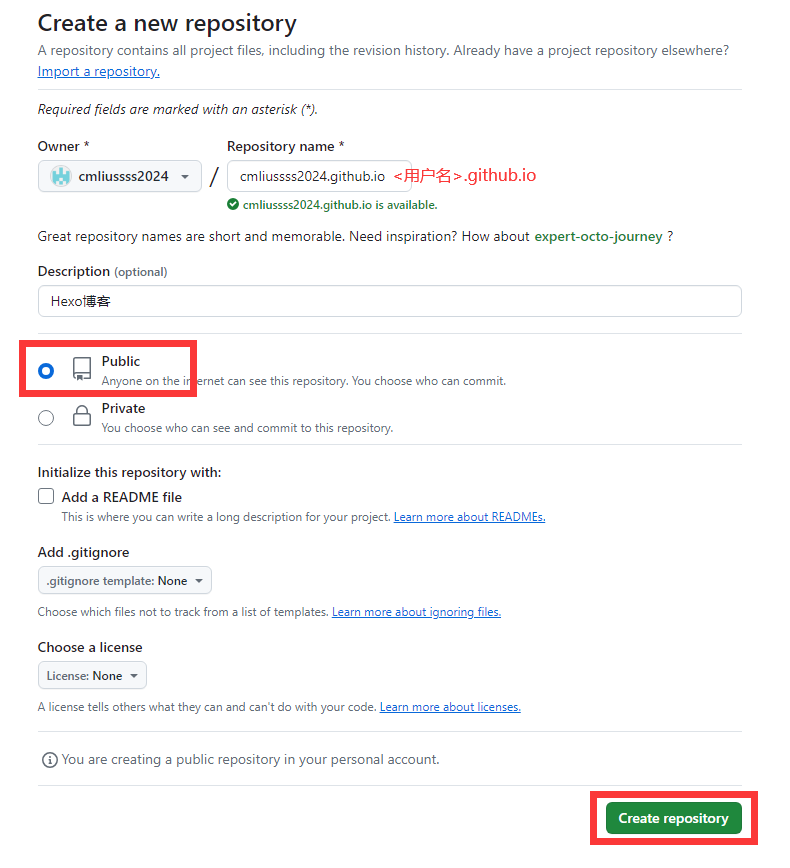
    <content type="html"><![CDATA[<h2 id="1-事前准备"><a href="#1-事前准备" class="headerlink" title="1.事前准备"></a>1.事前准备</h2><p>GitHub（必须，你需要注册一个GitHub帐号）<br>Cloudflare（非必须，你需要注册一个Cloudflare帐号，这样你就可以将博客部署在CF的CDN里加速，但是你也可以直接使用GitHub.io分配的域名）</p><h2 id="2-软件支持"><a href="#2-软件支持" class="headerlink" title="2.软件支持"></a>2.软件支持</h2><ol><li>安装Git（必须）</li><li>安装Node.js（必须）</li><li>VSCode（非必须，这是一款轻量型的代码编辑器）</li></ol><h2 id="3配置-Git-密钥并连接至-Github"><a href="#3配置-Git-密钥并连接至-Github" class="headerlink" title="3配置 Git 密钥并连接至 Github"></a>3配置 Git 密钥并连接至 Github</h2><figure class="highlight plaintext"><table><tr><td class="gutter"><pre><span class="line">1</span><br><span class="line">2</span><br><span class="line">3</span><br></pre></td><td class="code"><pre><span class="line">git config -l  //查看所有配置</span><br><span class="line">git config --system --list //查看系统配置</span><br><span class="line">git config --global --list //查看用户（全局）配置</span><br></pre></td></tr></table></figure><h3 id="3-1-配置用户名和邮箱"><a href="#3-1-配置用户名和邮箱" class="headerlink" title="3.1 配置用户名和邮箱"></a>3.1 配置用户名和邮箱</h3><figure class="highlight plaintext"><table><tr><td class="gutter"><pre><span class="line">1</span><br><span class="line">2</span><br></pre></td><td class="code"><pre><span class="line">git config --global user.name &quot;你的用户名&quot;</span><br><span class="line">git config --global user.email &quot;你的邮箱&quot;</span><br></pre></td></tr></table></figure><blockquote><p>通过git config -l 检查是否配置成功</p></blockquote><p>3.2 配置公钥连接Github<br><figure class="highlight plaintext"><table><tr><td class="gutter"><pre><span class="line">1</span><br></pre></td><td class="code"><pre><span class="line">ssh-keygen -t rsa -C &quot;你的邮箱&quot;</span><br></pre></td></tr></table></figure></p><blockquote><p>提示Enter file in which to save the key直接一路回车即可，新手小白不推荐设置密钥<br>生成公钥文件成功后，将公钥文件里的内容复制到GitHub的SSH Keys里，然后输入命令：ssh -T git@github.com</p></blockquote><p>3.3 私钥和公钥文件在C盘下用户文件夹下的.ssh的文件夹</p><ul><li>id_rsa私钥</li><li>id_rsa.pub公钥<blockquote><p>用记事本打开上述图片中的公钥id_rsa.pub，复制里面的内容，然后开始在github中配置ssh密钥。<br>3.4 将 SSH KEY 配置到 GitHub<br>进入github，点击右上角头像 选择settings，进入设置页后选择 SSH and GPG keys，名字随便起，公钥填到Key那一栏。<br>3.5 测试是否成功</p><figure class="highlight plaintext"><table><tr><td class="gutter"><pre><span class="line">1</span><br></pre></td><td class="code"><pre><span class="line">ssh -T git@github.com</span><br></pre></td></tr></table></figure><h2 id="4-创建GitHub-io仓库-也可以不用GitHub-io"><a href="#4-创建GitHub-io仓库-也可以不用GitHub-io" class="headerlink" title="4.创建GitHub.io仓库(也可以不用GitHub.io)"></a>4.创建GitHub.io仓库(也可以不用GitHub.io)</h2></blockquote></li></ul><ol><li>创建仓库</li><li>创建分支<br><img src="image-1.png" alt="alt text"><h2 id="5-安装Hexo"><a href="#5-安装Hexo" class="headerlink" title="5.安装Hexo"></a>5.安装Hexo</h2></li></ol>]]></content>


    <summary type="html">&lt;h2 id=&quot;1-事前准备&quot;&gt;&lt;a href=&quot;#1-事前准备&quot; class=&quot;headerlink&quot; title=&quot;1.事前准备&quot;&gt;&lt;/a&gt;1.事前准备&lt;/h2&gt;&lt;p&gt;GitHub（必须，你需要注册一个GitHub帐号）&lt;br&gt;Cloudflare（非必须，你需要注册一个Cl</summary>


    <category term="教程" scheme="https://blog.helijike.eu.org/categories/%E6%95%99%E7%A8%8B/"/>
    
    
    <category term="hexo" scheme="https://blog.helijike.eu.org/tags/hexo/"/>
    
    <category term="建站" scheme="https://blog.helijike.eu.org/tags/%E5%BB%BA%E7%AB%99/"/>
    
  </entry>
  
  <entry>
    <title>建站教程二（将静态博客hexo挂载到 Cloudflare Pages）</title>
    <link href="https://blog.helijike.eu.org/posts/b374de5.html"/>
    <id>https://blog.helijike.eu.org/posts/b374de5.html</id>
    <published>2025-11-15T03:40:12.000Z</published>
    <updated>2025-11-15T03:47:04.000Z</updated>
    
    <content type="html"><![CDATA[<h2 id="1-打开Cloudflare"><a href="#1-打开Cloudflare" class="headerlink" title="1.打开Cloudflare"></a>1.打开Cloudflare</h2><ul><li>没有的注册一个</li></ul><ol><li>在 Workers 和 Pages 中选择 Pages 的 连接到 Git<br><img src="https://blog.nanyu.xin/api/f/LQpU/1763206144049073925.jpg" alt=""><br><img src="https://blog.nanyu.xin/api/f/TJ1T/1763206200290347769.jpg" alt=""></li><li><p>然后登录你Blog仓库对应的GitHub帐号<br><img src="https://blog.nanyu.xin/api/f/F5Gm/1763206273932401164.jpg" alt=""><br><img src="https://blog.nanyu.xin/api/f/mzxu/1763206337161945101.jpg" alt=""><br>3.点击保存并部署后等待部署完成即可。<br><img src="https://blog.nanyu.xin/api/f/b1ZT/1763206408180849638.jpg" alt=""></p></li><li><p>提示成功！您的项目已部署到以下区域：全球后，浏览器访问：<a href="https://xxxxxxxio.pages.dev">https://xxxxxxxio.pages.dev</a> ，这时候我们就可以看到博客内容了。</p><blockquote><p>这时你也就可以将你的&lt;用户名&gt;.github.io的仓库设置为Private私库了</p></blockquote></li></ol><p>5如果你有自己的域名，你可以在这里绑定你自己的自定义域。</p><h2 id="2-如何使用"><a href="#2-如何使用" class="headerlink" title="2.如何使用"></a>2.如何使用</h2><h3 id="2-1新建一篇文件"><a href="#2-1新建一篇文件" class="headerlink" title="2.1新建一篇文件"></a>2.1新建一篇文件</h3><figure class="highlight plaintext"><table><tr><td class="gutter"><pre><span class="line">1</span><br><span class="line">2</span><br></pre></td><td class="code"><pre><span class="line">hexo new 这是一篇新的博文</span><br><span class="line"></span><br></pre></td></tr></table></figure><ul><li>然后用文本编辑器去编辑_posts/这是一篇新的博文.md里的内容即可，注意要使用Markdown格式书写。</li><li>详细使用方法可以查阅 <a href="https://hexo.io/zh-cn/docs/writing">https://hexo.io/zh-cn/docs/writing</a><h3 id="2-2编辑完文章保存后可以使用如下命令，生成本地页面-http-localhost-4000-，进行预览"><a href="#2-2编辑完文章保存后可以使用如下命令，生成本地页面-http-localhost-4000-，进行预览" class="headerlink" title="2.2编辑完文章保存后可以使用如下命令，生成本地页面 http://localhost:4000/ ，进行预览"></a>2.2编辑完文章保存后可以使用如下命令，生成本地页面 <a href="http://localhost:4000/">http://localhost:4000/</a> ，进行预览</h3></li></ul><figure class="highlight plaintext"><table><tr><td class="gutter"><pre><span class="line">1</span><br><span class="line">2</span><br><span class="line">3</span><br><span class="line">4</span><br><span class="line">5</span><br><span class="line">6</span><br><span class="line">7</span><br><span class="line">8</span><br></pre></td><td class="code"><pre><span class="line">// Git BASH终端</span><br><span class="line">hexo cl &amp;&amp; hexo s</span><br><span class="line"></span><br><span class="line">// 或者</span><br><span class="line"></span><br><span class="line">// VSCODE终端</span><br><span class="line">hexo cl; hexo s</span><br><span class="line"></span><br></pre></td></tr></table></figure><h3 id="2-3确认无误后使用以下命令，将本地文章推送至GitHub仓库即可"><a href="#2-3确认无误后使用以下命令，将本地文章推送至GitHub仓库即可" class="headerlink" title="2.3确认无误后使用以下命令，将本地文章推送至GitHub仓库即可"></a>2.3确认无误后使用以下命令，将本地文章推送至GitHub仓库即可</h3><figure class="highlight plaintext"><table><tr><td class="gutter"><pre><span class="line">1</span><br><span class="line">2</span><br><span class="line">3</span><br><span class="line">4</span><br><span class="line">5</span><br><span class="line">6</span><br><span class="line">7</span><br><span class="line">8</span><br></pre></td><td class="code"><pre><span class="line">// Git BASH终端</span><br><span class="line">hexo cl &amp;&amp; hexo g &amp;&amp; hexo d</span><br><span class="line"></span><br><span class="line">// 或者</span><br><span class="line"></span><br><span class="line">// VSCODE终端</span><br><span class="line">hexo cl; hexo g; hexo d</span><br><span class="line"></span><br></pre></td></tr></table></figure>]]></content>


    <summary type="html">&lt;h2 id=&quot;1-打开Cloudflare&quot;&gt;&lt;a href=&quot;#1-打开Cloudflare&quot; class=&quot;headerlink&quot; title=&quot;1.打开Cloudflare&quot;&gt;&lt;/a&gt;1.打开Cloudflare&lt;/h2&gt;&lt;ul&gt;
&lt;li&gt;没有的注册一个&lt;/li&gt;
&lt;/u</summary>


    <category term="教程" scheme="https://blog.helijike.eu.org/categories/%E6%95%99%E7%A8%8B/"/>
    
    
    <category term="hexo" scheme="https://blog.helijike.eu.org/tags/hexo/"/>
    
    <category term="部署" scheme="https://blog.helijike.eu.org/tags/%E9%83%A8%E7%BD%B2/"/>
    
  </entry>
  
  <entry>
    <title>建站教程一（hexo零基础建站）</title>
    <link href="https://blog.helijike.eu.org/posts/3c3c884d.html"/>
    <id>https://blog.helijike.eu.org/posts/3c3c884d.html</id>
    <published>2025-11-15T03:10:31.000Z</published>
    <updated>2025-11-15T03:46:31.000Z</updated>
    
    <content type="html"><![CDATA[<h2 id="1-事前准备"><a href="#1-事前准备" class="headerlink" title="1.事前准备"></a>1.事前准备</h2><ol><li>GitHub（必须，你需要注册一个GitHub帐号）</li><li>Cloudflare（非必须，你需要注册一个Cloudflare帐号，这样你就可以将博客部署在CF的CDN里加速，但是你也可以直接使用GitHub.io分配的域名）</li></ol><h2 id="2-软件支持"><a href="#2-软件支持" class="headerlink" title="2.软件支持"></a>2.软件支持</h2><ol><li>安装Git（必须）</li><li>安装Node.js（必须）</li><li>VSCode（非必须，这是一款轻量型的代码编辑器）</li></ol><h2 id="3配置-Git-密钥并连接至-Github"><a href="#3配置-Git-密钥并连接至-Github" class="headerlink" title="3配置 Git 密钥并连接至 Github"></a>3配置 Git 密钥并连接至 Github</h2><figure class="highlight plaintext"><table><tr><td class="gutter"><pre><span class="line">1</span><br><span class="line">2</span><br><span class="line">3</span><br></pre></td><td class="code"><pre><span class="line">git config -l  //查看所有配置</span><br><span class="line">git config --system --list //查看系统配置</span><br><span class="line">git config --global --list //查看用户（全局）配置</span><br></pre></td></tr></table></figure><h3 id="3-1-配置用户名和邮箱"><a href="#3-1-配置用户名和邮箱" class="headerlink" title="3.1 配置用户名和邮箱"></a>3.1 配置用户名和邮箱</h3><figure class="highlight plaintext"><table><tr><td class="gutter"><pre><span class="line">1</span><br><span class="line">2</span><br></pre></td><td class="code"><pre><span class="line">git config --global user.name &quot;你的用户名&quot;</span><br><span class="line">git config --global user.email &quot;你的邮箱&quot;</span><br></pre></td></tr></table></figure><blockquote><p>通过git config -l 检查是否配置成功</p></blockquote><h3 id="3-2-配置公钥连接Github"><a href="#3-2-配置公钥连接Github" class="headerlink" title="3.2 配置公钥连接Github"></a>3.2 配置公钥连接Github</h3><figure class="highlight plaintext"><table><tr><td class="gutter"><pre><span class="line">1</span><br></pre></td><td class="code"><pre><span class="line">ssh-keygen -t rsa -C &quot;你的邮箱&quot;</span><br></pre></td></tr></table></figure><blockquote><p>提示Enter file in which to save the key直接一路回车即可，新手小白不推荐设置密钥<br>生成公钥文件成功后，将公钥文件里的内容复制到GitHub的SSH Keys里，然后输入命令：ssh -T git@github.com</p></blockquote><h3 id="3-3-私钥和公钥文件在C盘下用户文件夹下的-ssh的文件夹"><a href="#3-3-私钥和公钥文件在C盘下用户文件夹下的-ssh的文件夹" class="headerlink" title="3.3 私钥和公钥文件在C盘下用户文件夹下的.ssh的文件夹"></a>3.3 私钥和公钥文件在C盘下用户文件夹下的.ssh的文件夹</h3><ul><li>id_rsa私钥</li><li>id_rsa.pub公钥</li></ul><blockquote><p>用记事本打开公钥id_rsa.pub，复制里面的内容，然后开始在github中配置ssh密钥。</p></blockquote><h3 id="3-4-将-SSH-KEY-配置到-GitHub"><a href="#3-4-将-SSH-KEY-配置到-GitHub" class="headerlink" title="3.4 将 SSH KEY 配置到 GitHub"></a>3.4 将 SSH KEY 配置到 GitHub</h3><p>进入github，点击右上角头像 选择settings，进入设置页后选择 SSH and GPG keys，名字随便起，公钥填到Key那一栏。</p><h3 id="3-5-测试是否成功"><a href="#3-5-测试是否成功" class="headerlink" title="3.5 测试是否成功"></a>3.5 测试是否成功</h3><figure class="highlight plaintext"><table><tr><td class="gutter"><pre><span class="line">1</span><br></pre></td><td class="code"><pre><span class="line">ssh -T git@github.com</span><br></pre></td></tr></table></figure><h2 id="4-创建GitHub-io仓库-也可以不用GitHub-io"><a href="#4-创建GitHub-io仓库-也可以不用GitHub-io" class="headerlink" title="4.创建GitHub.io仓库(也可以不用GitHub.io)"></a>4.创建GitHub.io仓库(也可以不用GitHub.io)</h2><ol><li>创建仓库</li><li>创建分支<br><img src="https://img.090227.xyz/file/3d9274644460cd1ffeb26.png" alt="github"></li></ol><h2 id="5-初始化Hexo"><a href="#5-初始化Hexo" class="headerlink" title="5.初始化Hexo"></a>5.初始化Hexo</h2><h3 id="5-1-在win桌面运行git，输入如下命令"><a href="#5-1-在win桌面运行git，输入如下命令" class="headerlink" title="5.1 在win桌面运行git，输入如下命令"></a>5.1 在win桌面运行git，输入如下命令</h3><figure class="highlight plaintext"><table><tr><td class="gutter"><pre><span class="line">1</span><br><span class="line">2</span><br><span class="line">3</span><br><span class="line">4</span><br><span class="line">5</span><br><span class="line">6</span><br></pre></td><td class="code"><pre><span class="line">npm install hexo-cli -g</span><br><span class="line">hexo init blog</span><br><span class="line">cd blog</span><br><span class="line">npm install</span><br><span class="line">hexo server</span><br><span class="line"></span><br></pre></td></tr></table></figure><h3 id="5-2初始化项目后，blog有如下结构："><a href="#5-2初始化项目后，blog有如下结构：" class="headerlink" title="5.2初始化项目后，blog有如下结构："></a>5.2初始化项目后，blog有如下结构：</h3><p><img src="https://blog.nanyu.xin/api/f/RgeK/1763204463751417490.png" alt=""></p><blockquote><p>node_modules：依赖包<br>scaffolds：生成文章的一些模板<br>source：用来存放你的文章<br>themes：主题<br>.npmignore：发布时忽略的文件（可忽略）<br>_config.landscape.yml：主题的配置文件<br>config.yml：博客的配置文件<br>package.json：项目名称、描述、版本、运行和开发等信</p></blockquote><h3 id="5-3在命令行输入hexo-cl-amp-amp-hexo-s启动项目"><a href="#5-3在命令行输入hexo-cl-amp-amp-hexo-s启动项目" class="headerlink" title="5.3在命令行输入hexo cl &amp;&amp; hexo s启动项目"></a>5.3在命令行输入hexo cl &amp;&amp; hexo s启动项目</h3><blockquote><p>打开浏览器，输入地址：<a href="http://localhost:4000/">http://localhost:4000/</a> ，看到下面的效果，说明你的博客已经构建成功了。</p></blockquote><h2 id="6-将静态博客挂载到-GitHub-Pages"><a href="#6-将静态博客挂载到-GitHub-Pages" class="headerlink" title="6.将静态博客挂载到 GitHub Pages"></a>6.将静态博客挂载到 GitHub Pages</h2><figure class="highlight plaintext"><table><tr><td class="gutter"><pre><span class="line">1</span><br><span class="line">2</span><br></pre></td><td class="code"><pre><span class="line">npm install hexo-deployer-git --save</span><br><span class="line"></span><br></pre></td></tr></table></figure><blockquote><p>这个命令很重要，不能运行blog文件部署不到GitHub上</p></blockquote><h3 id="修改-config-yml-文件"><a href="#修改-config-yml-文件" class="headerlink" title="修改 _config.yml 文件"></a>修改 _config.yml 文件</h3><ol><li><p>在blog目录下的_config.yml，就是整个Hexo框架的配置文件了。可以在里面修改大部分的配置。详细可参考官方的配置描述。</p></li><li><p>修改最后一行的配置，将xxx修改为你自己的github项目地址即可，还有分支要改为main代表主分支（注意缩进）。</p></li></ol><figure class="highlight plaintext"><table><tr><td class="gutter"><pre><span class="line">1</span><br><span class="line">2</span><br><span class="line">3</span><br><span class="line">4</span><br><span class="line">5</span><br></pre></td><td class="code"><pre><span class="line">deploy:</span><br><span class="line">  type: git</span><br><span class="line">  repository: git@github.com:xxxx/xxxx.github.io.git</span><br><span class="line">  branch: main</span><br><span class="line"></span><br></pre></td></tr></table></figure><p>修改好配置后，运行如下命令，将代码部署到 GitHub（Hexo三连）。</p><figure class="highlight plaintext"><table><tr><td class="gutter"><pre><span class="line">1</span><br><span class="line">2</span><br><span class="line">3</span><br><span class="line">4</span><br><span class="line">5</span><br><span class="line">6</span><br><span class="line">7</span><br><span class="line">8</span><br></pre></td><td class="code"><pre><span class="line">// Git BASH终端</span><br><span class="line">hexo clean &amp;&amp; hexo generate &amp;&amp; hexo deploy  </span><br><span class="line"></span><br><span class="line">// 或者</span><br><span class="line"></span><br><span class="line">// VSCODE终端</span><br><span class="line">hexo cl; hexo g; hexo d</span><br><span class="line"></span><br></pre></td></tr></table></figure><h2 id="VSCODE-终端首次执行报错（如果你使用的是win系统自带的命令行需运行如下命令）"><a href="#VSCODE-终端首次执行报错（如果你使用的是win系统自带的命令行需运行如下命令）" class="headerlink" title="VSCODE 终端首次执行报错（如果你使用的是win系统自带的命令行需运行如下命令）"></a>VSCODE 终端首次执行报错（如果你使用的是win系统自带的命令行需运行如下命令）</h2><figure class="highlight plaintext"><table><tr><td class="gutter"><pre><span class="line">1</span><br><span class="line">2</span><br></pre></td><td class="code"><pre><span class="line">Set-ExecutionPolicy RemoteSigned</span><br><span class="line"></span><br></pre></td></tr></table></figure><ul><li>hexo clean：删除之前生成的文件，可以用hexo cl缩写。</li><li>hexo generate：生成静态文章，可以用hexo g缩写</li><li>hexo deploy：部署文章，可以用hexo d缩写<br><u><strong>如果出现Deploy done，则说明部署成功了。</strong></u></li></ul><p><img src="https://blog.nanyu.xin/api/f/W70l/1763205371810958670.png" alt="部署到GitHub成功"></p><blockquote><p>稍等两分钟，打开浏览器访问：<a href="https://xxxx.github.io">https://xxxx.github.io</a> ，这时候我们就可以看到博客内容了。(xxx就是你的仓库名）</p></blockquote>]]></content>


    <summary type="html">&lt;h2 id=&quot;1-事前准备&quot;&gt;&lt;a href=&quot;#1-事前准备&quot; class=&quot;headerlink&quot; title=&quot;1.事前准备&quot;&gt;&lt;/a&gt;1.事前准备&lt;/h2&gt;&lt;ol&gt;
&lt;li&gt;GitHub（必须，你需要注册一个GitHub帐号）&lt;/li&gt;
&lt;li&gt;Cloudflare（非</summary>


    <category term="教程" scheme="https://blog.helijike.eu.org/categories/%E6%95%99%E7%A8%8B/"/>
    
    
    <category term="hexo" scheme="https://blog.helijike.eu.org/tags/hexo/"/>
    
    <category term="建站" scheme="https://blog.helijike.eu.org/tags/%E5%BB%BA%E7%AB%99/"/>
    
  </entry>
  
  <entry>
    <title>报错到完美排雷（下）</title>
    <link href="https://blog.helijike.eu.org/posts/7ab43e2.html"/>
    <id>https://blog.helijike.eu.org/posts/7ab43e2.html</id>
    <published>2025-11-14T16:00:00.000Z</published>
    <updated>2026-05-18T16:42:59.038Z</updated>
    
    <content type="html"><![CDATA[<blockquote><p>在上半部分中，我们历经千辛万苦，终于把本地电脑上写好的文章通过 hexo d 成功部署到了 GitHub Pages 上，让全网都能看到我们的博客。</p><p>但此时，我们面临着一个极其隐蔽且致命的安全隐患：hexo d 仅仅是把你写好的 .md 文件转换成了 .html 网页代码传了上去。如果你此时电脑突然罢工、硬盘损坏，或者你不小心删除了本地的 blog 文件夹——你的所有文章草稿、精心配置的主题、各种插件设置，将全部灰飞烟灭！</p><p>为了防止这种人间惨剧的发生，我们需要重构博客的备份工作流：引入<strong>“双分支策略”</strong>，并搭配 VS Code 中超好用的 Git Emoji Commit 插件，实现极其优雅的日常备份。</p><hr><h2 id="📍-阶段五：Hexo-的“双分支”备份哲学"><a href="#📍-阶段五：Hexo-的“双分支”备份哲学" class="headerlink" title="📍 阶段五：Hexo 的“双分支”备份哲学"></a>📍 阶段五：Hexo 的“双分支”备份哲学</h2><p>业界标准的 Hexo 托管策略是将其存放在同一个 GitHub 仓库的两个独立分支中：</p></blockquote><p><strong>main</strong> 分支（对外发布）：只存放 Hexo 渲染出来的静态网页（html/css/js），由 <strong>hexo d</strong> 命令全自动管理。</p><p><strong>source</strong> 分支（内部备份）：存放最宝贵的“博客源文件”（你敲字用的 <strong>.md</strong> 文件、<strong>_config.yml</strong> 配置、<strong>themes</strong> 主题包等），由我们手动用 Git 备份。</p><p>理清了思路，我们马上开始动手实操！</p><hr><h2 id="📍-阶段六：实战！使用-Emoji-插件优雅地备份源文件"><a href="#📍-阶段六：实战！使用-Emoji-插件优雅地备份源文件" class="headerlink" title="📍 阶段六：实战！使用 Emoji 插件优雅地备份源文件"></a>📍 阶段六：实战！使用 Emoji 插件优雅地备份源文件</h2><p>在这一步之前，我已经在 VS Code 扩展商店里安装了一款名为 Git Emoji Commit 中文版 的优秀插件。它可以让我们的备份记录看起来既专业又赏心悦目。</p><ol><li>初始化源文件仓库并绑定分支<br>在博客最外层根目录（blog 文件夹）下打开终端，依次输入以下命令：</li></ol><figure class="highlight bash"><table><tr><td class="gutter"><pre><span class="line">1</span><br><span class="line">2</span><br><span class="line">3</span><br><span class="line">4</span><br><span class="line">5</span><br><span class="line">6</span><br><span class="line">7</span><br><span class="line">8</span><br></pre></td><td class="code"><pre><span class="line"><span class="comment"># 1. 告诉 Git 监控当前所有的源文件</span></span><br><span class="line">git init</span><br><span class="line"></span><br><span class="line"><span class="comment"># 2. 将默认的本地分支改名为 source（为了避开网页所在的 main 分支）</span></span><br><span class="line">git branch -M <span class="built_in">source</span></span><br><span class="line"></span><br><span class="line"><span class="comment"># 3. 关联我们远端的 GitHub 仓库</span></span><br><span class="line">git remote add origin https://github.com/[用户名]/[仓库名].git</span><br></pre></td></tr></table></figure><h4 id="2-拥抱全图形化-Emoji-提交"><a href="#2-拥抱全图形化-Emoji-提交" class="headerlink" title="2.拥抱全图形化 Emoji 提交"></a>2.拥抱全图形化 Emoji 提交</h4><p>配置好底层关联后，以后每次写完文章，备份操作完全不需要再敲代码：</p><p>1.<strong>暂存更改</strong>：点击 VS Code 左侧边栏的 “源代码管理” 图标（带有分支的小图标）。将鼠标悬停在“更改”列表旁，点击 + 号，把所有变动的源文件移动到“暂存的更改”中。</p><p>2.<strong>呼出表情菜单</strong>：点击输入框上方弹出的 笑脸图标 😃（或按快捷键 Ctrl+Shift+P 搜 emoji）。</p><p>3.<strong>挑选表情</strong>：插件会列出丰富且带中文解释的图标。作为第一次全量备份，我选择了 🎉 (初次提交)。</p><p>4.<strong>填写信息并提交</strong>：在表情后补充文字，如 🎉 初始化：首次备份博客源文件，然后点击蓝色的 “提交” 按钮。</p><p>5.<strong>推送到云端</strong>：回到终端，执行最后一次手动推送（以后只需点 VS Code 上的“同步更改”按钮即可）：</p><figure class="highlight bash"><table><tr><td class="gutter"><pre><span class="line">1</span><br></pre></td><td class="code"><pre><span class="line">git push -u origin <span class="built_in">source</span></span><br></pre></td></tr></table></figure><p>看着终端里跑完进度条，显示 * [new branch] source -&gt; source，这意味着我的几百个源文件终于安稳地躺在云端了！满满的安全感！</p><hr><h2 id="📍-阶段七：终极指南-——-换新电脑后如何无缝恢复博客？"><a href="#📍-阶段七：终极指南-——-换新电脑后如何无缝恢复博客？" class="headerlink" title="📍 阶段七：终极指南 —— 换新电脑后如何无缝恢复博客？"></a>📍 阶段七：终极指南 —— 换新电脑后如何无缝恢复博客？</h2><p>既然源码已经在云端了，那如果我们换了新电脑，或者想在公司和家里同时写博客，该怎么做呢？这里有一套标准的“无缝接班”流程。</p><p>(强推各位 Hexo 玩家将本段收藏，未来换电脑时直接照抄！)</p><p><strong><u>Step 1: 准备新电脑的“基础设施”</u></strong><br>在新电脑上，你需要提前安装好博客的运行环境：</p><ol><li>Node.js (Hexo 的运行引擎，去官网下长期支持版)</li><li>Git (版本控制工具)</li><li>VS Code (宇宙最强编辑器)</li></ol><p><strong><u>Step 2: 拉取源文件（⚠️ 最容易翻车的一步）</u></strong><br><strong>千万不要直接去网页上点 Download ZIP</strong>，也别直接无脑 <strong>git clone！</strong> 因为默认 clone 下来的是只包含网页代码的 <strong>main</strong> 分支。<br>我们需要精准制导，只拉取 <strong>source</strong> 分支：</p><ol><li><p>在新电脑新建一个空文件夹（如 <strong>MyBlog</strong>）。</p></li><li><p>在这个文件夹里打开终端，执行：</p></li></ol><figure class="highlight bash"><table><tr><td class="gutter"><pre><span class="line">1</span><br></pre></td><td class="code"><pre><span class="line">git <span class="built_in">clone</span> -b <span class="built_in">source</span> https://github.com/[用户名]/[仓库名].git</span><br></pre></td></tr></table></figure><p><strong>Step 3: 重新唤醒 Hexo</strong><br>你会发现下载下来的文件里少了很多东西（比如 node_modules 文件夹），这是因为 Git 帮我们忽略了那些沉重的依赖包。没关系，我们让系统重新下载它们：</p><p>在克隆下来的项目目录中打开终端，依次执行：</p><figure class="highlight bash"><table><tr><td class="gutter"><pre><span class="line">1</span><br><span class="line">2</span><br><span class="line">3</span><br><span class="line">4</span><br><span class="line">5</span><br></pre></td><td class="code"><pre><span class="line"><span class="comment"># 1. 全局安装 Hexo 核心控制台</span></span><br><span class="line">npm install -g hexo-cli</span><br><span class="line"></span><br><span class="line"><span class="comment"># 2. 根据 package.json 自动把所有缺失的插件下载回来</span></span><br><span class="line">npm install</span><br></pre></td></tr></table></figure><p><strong>搞定！到这一步，你的博客就已经在新电脑上满血复活了！</strong></p><hr><h2 id="🎉-总结：一套完美且无痛的日常工作流"><a href="#🎉-总结：一套完美且无痛的日常工作流" class="headerlink" title="🎉 总结：一套完美且无痛的日常工作流"></a>🎉 总结：一套完美且无痛的日常工作流</h2><blockquote><p>经历了这几天的心跳大挑战，我终于把 Hexo 博客调校到了最完美的状态。为了防止以后自己大脑短路，特意总结了这套“日常三步曲”口诀：</p></blockquote><p><strong>👉 场景 A：文章写完了，我要发布到网上给大家看！</strong><br>完全无视左侧的 Git 图标，直接在终端敲：</p><figure class="highlight bash"><table><tr><td class="gutter"><pre><span class="line">1</span><br><span class="line">2</span><br><span class="line">3</span><br></pre></td><td class="code"><pre><span class="line">hexo clean</span><br><span class="line">hexo g</span><br><span class="line">hexo d</span><br></pre></td></tr></table></figure><p><strong>👉 场景 B：今天写累了草稿还没完，或者我刚改了主题配置，我要备份！</strong><br>完全无视终端，直接走图形化界面：</p><ol><li>左侧点 + 暂存。</li><li>用 Emoji 插件选个萌萌的表情 📝，写上 📝 记录：折腾了一下字体，然后提交。</li><li>点击“同步更改（推送）”。</li></ol><p>至此，我的 Hexo 部署与备份除虫之旅圆满收官。折腾博客的过程虽然充满坎坷，但当你看到那个带有小红心 ❤️ 或者小火箭 🚀 的 Commit 记录安静地待在 GitHub 上，当你在新电脑上敲两行命令就能瞬间回到熟悉的写作环境时，你会发现——所有的折腾，都是值得的。</p><hr><p><em>(全文完)</em></p>]]></content>


    <summary type="html">&lt;blockquote&gt;
&lt;p&gt;在上半部分中，我们历经千辛万苦，终于把本地电脑上写好的文章通过 hexo d 成功部署到了 GitHub Pages 上，让全网都能看到我们的博客。&lt;/p&gt;
&lt;p&gt;但此时，我们面临着一个极其隐蔽且致命的安全隐患：hexo d 仅仅是把你写好的 .m</summary>


    <category term="教程" scheme="https://blog.helijike.eu.org/categories/%E6%95%99%E7%A8%8B/"/>
    
    
    <category term="Git" scheme="https://blog.helijike.eu.org/tags/Git/"/>
    
    <category term="Hexo" scheme="https://blog.helijike.eu.org/tags/Hexo/"/>
    
    <category term="踩坑" scheme="https://blog.helijike.eu.org/tags/%E8%B8%A9%E5%9D%91/"/>
    
  </entry>
  
  <entry>
    <title>Obsidian Git同步配置指南</title>
    <link href="https://blog.helijike.eu.org/posts/0.html"/>
    <id>https://blog.helijike.eu.org/posts/0.html</id>
    <published>2025-08-03T16:00:00.000Z</published>
    <updated>2026-05-18T16:42:59.036Z</updated>
    
    <content type="html"><![CDATA[<div class="relative px-4 sm:px-8 lg:px-12">  <div class="mx-auto max-w-3xl"> <article class="mb-40"> <div class="prose dark:prose-invert mx-auto prose-slate prose-a:text-primary-500 max-w-none"> <header class="flex flex-col gap-y-1"> <h1 class="text-3xl sm:text-4xl">Obsidian笔记库同步方案-Git</h1> <time class="text-sm font-mono inline-flex mx-auto text-stone-400"> <time datetime="2025-08-04T00:00:00.000Z"> Aug 4, 2025 </time> </time> <a href="/download/Obsidian笔记库同步方案-Git.md" download="Obsidian笔记库同步方案-Git.md" class="block mt-4 text-sm text-blue-600 hover:underline">下载文件</a> </header>  <h1 id="obsidian-git-同步配置指南-桌面端">Obsidian Git 同步配置指南 (桌面端)</h1><p><strong>核心优势</strong>:</p><ul><li><strong>版本控制</strong>: 每次提交都是一个快照，你可以随时回溯到任何历史版本，是防止误删、误改的最强保险。</li><li><strong>免费可靠</strong>: 利用 GitHub/Gitee 等平台的免费私有仓库，成本为零。</li><li><strong>无冲突风险</strong>: Git 强大的分支和合并机制能专业地处理冲突，远优于普通网盘。</li><li><strong>可以尽情折腾插件外观</strong>: 依托于Git 强大的分支和合并机制。</li></ul><p><strong>核心劣势</strong>:</p><ul><li><strong>手机端不给力</strong>: 需要借助第三方工具，麻烦且收费。</li><li><strong>不适合大量二进制文件存储</strong>: 比如音频，视频，图片。</li></ul><h2 id="前提条件">前提条件</h2><ol><li><strong>一个 GitHub/Gitee 账号</strong>: 用于托管你的远程私有仓库。</li><li><strong>在你的电脑上已安装 Git</strong>: 可以从 <a href="https://git-scm.com/downloads">git-scm.com</a> 下载安装。</li></ol><hr><h2 id="步骤简介">步骤简介</h2><table><thead><tr><th align="left">步骤</th><th align="left">核心任务</th><th align="left">全新仓库的操作</th><th align="left">已有仓库的操作</th></tr></thead><tbody><tr><td align="left"><strong>1</strong></td><td align="left"><strong>创建云端仓库</strong></td><td align="left">在 GitHub/Gitee 创建一个空的<strong>私有</strong>仓库。</td><td align="left">(同左)</td></tr><tr><td align="left"><strong>2</strong></td><td align="left"><strong>建立本地仓库</strong></td><td align="left">在本地选好位置，执行 <code>git clone [仓库地址]</code>。</td><td align="left"><code>cd</code> 进入库文件夹，执行 <code>git init</code>。</td></tr><tr><td align="left"><strong>3</strong></td><td align="left"><strong>关联云与本地</strong></td><td align="left"><code>clone</code> 命令已自动完成此步骤。</td><td align="left">执行 <code>git remote add origin [仓库地址]</code>。</td></tr><tr><td align="left"><strong>4</strong></td><td align="left"><strong>创建忽略规则</strong></td><td align="left">在库的根目录创建 <code>.gitignore</code> 文件。</td><td align="left">(同左)</td></tr><tr><td align="left"><strong>5</strong></td><td align="left"><strong>首次推送内容</strong></td><td align="left">执行 <code>git add</code>, <code>commit</code>, <code>push</code> 命令。</td><td align="left">(同左)</td></tr><tr><td align="left"><strong>6</strong></td><td align="left"><strong>实现自动化</strong></td><td align="left">安装并配置 <code>Obsidian Git</code> 插件，设置自动同步。</td><td align="left">(同左)</td></tr></tbody></table><h2 id="详细配置步骤">详细配置步骤</h2><h3 id="步骤一创建远程私有仓库">步骤一：创建远程私有仓库</h3><ol><li>注册、登录 <strong>GitHub</strong> (或 Gitee)。</li><li>点击右上角的 <code>+</code> 号，选择 <code>New repository</code>。</li><li><strong>Repository name</strong>: 建议使用你的库名称，例如 <code>my-obsidian-vault</code>。</li><li><strong>设置为 <code>Private</code></strong>: <strong>至关重要！</strong> 确保你的笔记不会被公开访问。</li><li><strong>不要</strong>勾选任何 “Initialize this repository with…” 的选项（如 README, .gitignore）。我们需要一个完全空的仓库来接收我们已有的本地内容。</li><li>点击 <code>Create repository</code>。创建后，复制页面上提供的 <strong>HTTPS</strong> 地址备用。</li><li>安装Git</li></ol><h3 id="步骤二初始化本地仓库">步骤二：初始化本地仓库</h3><p>接下来，我们要把你本地的 Obsidian 库文件夹变成一个 Git 仓库。</p><ol><li>打开你电脑的终端 (Terminal, PowerShell, CMD)。</li><li>使用 <code>cd</code> 命令进入你的 Obsidian 库所在的文件夹。（这里也可以打开文件夹后，右键点击文件夹空白处，选择<code>Open Git Bash Here</code>）<pre class="astro-code github-dark" style="background-color:#24292e;color:#e1e4e8; overflow-x: auto;" tabindex="0" data-language="bash"><code><span class="line"><span style="color:#6A737D"># 示例 (请替换为你的真实路径)</span></span><span class="line"><span style="color:#79B8FF">cd</span><span style="color:#9ECBFF"> ~/Documents/MyVault</span></span></code></pre></li><li>执行 <code>git init</code> 命令，这会在当前文件夹下创建一个 <code>.git</code> 子文件夹，标志着本地仓库创建成功。<pre class="astro-code github-dark" style="background-color:#24292e;color:#e1e4e8; overflow-x: auto;" tabindex="0" data-language="bash"><code><span class="line"><span style="color:#B392F0">git</span><span style="color:#9ECBFF"> init</span></span></code></pre></li><li>(推荐) 将默认分支名从 <code>master</code> 修改为 <code>main</code>，这是目前社区的推荐做法。<pre class="astro-code github-dark" style="background-color:#24292e;color:#e1e4e8; overflow-x: auto;" tabindex="0" data-language="bash"><code><span class="line"><span style="color:#B392F0">git</span><span style="color:#9ECBFF"> branch</span><span style="color:#79B8FF"> -m</span><span style="color:#9ECBFF"> main</span></span></code></pre></li><li>将你的本地仓库与第一步创建的远程仓库关联起来。<pre class="astro-code github-dark" style="background-color:#24292e;color:#e1e4e8; overflow-x: auto;" tabindex="0" data-language="bash"><code><span class="line"><span style="color:#6A737D"># 将 [你的远程仓库地址] 替换为你之前复制的 URL</span></span><span class="line"><span style="color:#B392F0">git</span><span style="color:#9ECBFF"> remote</span><span style="color:#9ECBFF"> add</span><span style="color:#9ECBFF"> origin</span><span style="color:#E1E4E8"> [你的远程仓库地址]</span></span></code></pre></li></ol><p><strong>如果你尚未创建任何Obsidian vault，那么你可以直接新建一个文件夹（比如MyVault），在这个文件夹里的空白处点击右键，选择<code>Open Git Bash Here</code>，然后执行命令<code>git clone [你的远程仓库地址]</code>，然后，在obsidian中打开这个文件夹即可。</strong></p><h3 id="步骤三创建-gitignore-文件">步骤三：创建 <code>.gitignore</code> 文件</h3><p>此文件用于告诉 Git 哪些文件或文件夹<strong>不需要</strong>被同步，以保持仓库干净并避免不必要的冲突。</p><ol><li>在你的库根目录（与 <code>.obsidian</code> 文件夹同级）创建一个名为 <code>.gitignore</code> 的文件。</li><li>打开该文件，粘贴以下推荐内容：</li></ol><pre class="astro-code github-dark" style="background-color:#24292e;color:#e1e4e8; overflow-x: auto;" tabindex="0" data-language="plaintext"><code><span class="line"><span># 忽略操作系统自动生成的文件</span></span><span class="line"><span>.DS_Store</span></span><span class="line"><span>Thumbs.db</span></span><span class="line"><span></span></span><span class="line"><span># 忽略Obsidian的缓存文件</span></span><span class="line"><span>.obsidian/cache</span></span><span class="line"><span></span></span><span class="line"><span># 忽略特定设备的工作区状态，这是避免冲突的关键</span></span><span class="line"><span># 这是你本次操作的核心目标</span></span><span class="line"><span>.obsidian/workspace.json</span></span><span class="line"><span>.obsidian/workspaces.json</span></span><span class="line"><span>.obsidian/workspace-mobile.json</span></span><span class="line"><span></span></span><span class="line"><span># 忽略其他不建议同步的文件</span></span><span class="line"><span>.obsidian/daily-notes.json</span></span><span class="line"><span>.obsidian/facets.json</span></span><span class="line"><span>.obsidian/starred.json</span></span><span class="line"><span></span></span><span class="line"><span># 忽略插件的缓存和数据文件 (可选，但推荐)</span></span><span class="line"><span># .obsidian/plugins/some-plugin/data.json</span></span><span class="line"><span>.obsidian/plugins/recent-files-obsidian/data.json</span></span><span class="line"><span></span></span><span class="line"><span># 忽略垃圾箱文件夹</span></span><span class="line"><span>.trash/</span></span></code></pre><h3 id="步骤四首次提交与推送">步骤四：首次提交与推送</h3><p>这是将你本地的所有笔记首次上传到 GitHub 的关键一步。</p><ol><li>回到终端，将所有文件添加到暂存区。<pre class="astro-code github-dark" style="background-color:#24292e;color:#e1e4e8; overflow-x: auto;" tabindex="0" data-language="bash"><code><span class="line"><span style="color:#B392F0">git</span><span style="color:#9ECBFF"> add</span><span style="color:#9ECBFF"> .</span></span></code></pre></li><li>提交这些文件，并附上一条描述信息。<pre class="astro-code github-dark" style="background-color:#24292e;color:#e1e4e8; overflow-x: auto;" tabindex="0" data-language="bash"><code><span class="line"><span style="color:#B392F0">git</span><span style="color:#9ECBFF"> commit</span><span style="color:#79B8FF"> -m</span><span style="color:#9ECBFF"> "Initial commit: Add all vault files"</span></span></code></pre></li><li>将本地的 <code>main</code> 分支内容推送到远程 <code>origin</code> 仓库，并建立跟踪关系。<pre class="astro-code github-dark" style="background-color:#24292e;color:#e1e4e8; overflow-x: auto;" tabindex="0" data-language="bash"><code><span class="line"><span style="color:#B392F0">git</span><span style="color:#9ECBFF"> push</span><span style="color:#79B8FF"> -u</span><span style="color:#9ECBFF"> origin</span><span style="color:#9ECBFF"> main</span></span></code></pre>执行此步时，可能会提示你输入 GitHub 的用户名和密码（实际上是 <strong>Personal Access Token</strong>）。</li></ol><h3 id="步骤五安装并配置-obsidian-git-插件">步骤五：安装并配置 <code>Obsidian Git</code> 插件</h3><p>最后一步是让 Obsidian 自动为我们执行 Git 操作。</p><ol><li>在 Obsidian 中，进入 <code>设置</code> -&gt; <code>第三方插件</code> -&gt; <code>社区插件市场</code>。</li><li>搜索 <code>Obsidian Git</code>，点击 <code>安装</code>，然后 <code>启用</code>。</li><li>进入 <code>Obsidian Git</code> 的设置页面，进行以下核心配置：</li></ol><ul><li><strong>Pull on startup</strong>: 启动时拉取更新。防止多设备内容冲突的核心功能，必须开启。</li><li><strong>Auto commit interval (minutes)</strong>: 自动提交间隔。设置大于0的值（如10），以启用后台自动备份到本地。</li><li><strong>Push on commit-and-sync(在“提交并同步”时推送)</strong>: 默认是开启的，保持开启即可。</li></ul><p>至此，全部配置完成！你的 Obsidian 库已经拥有了强大的 Git “超能力”，可以安心地在多台电脑上写作了。你也可以通过命令面板 (<code>Ctrl/Cmd + P</code>) 手动执行 <code>Git: Push</code> 等命令。</p><h2 id="流程图">流程图</h2><pre class="astro-code github-dark" style="background-color:#24292e;color:#e1e4e8; overflow-x: auto;" tabindex="0" data-language="mermaid"><code><span class="line"><span style="color:#E1E4E8">flowchart TD</span></span><span class="line"><span style="color:#E1E4E8">    A["开始"] --&gt; B["在 GitHub 创建空的私有仓库"];</span></span><span class="line"><span style="color:#E1E4E8">    B --&gt; C["在电脑上安装 Git"];</span></span><span class="line"><span style="color:#E1E4E8">    C --&gt; D&#123;"这是一个全新的库吗"&#125;;</span></span><span class="line"></span><span class="line"><span style="color:#E1E4E8">    D -- "是 (全新库)" --&gt; E["在本地选择一个位置执行 git clone [仓库地址]"];</span></span><span class="line"><span style="color:#E1E4E8">    E --&gt; J["用 Obsidian 打开这个新文件夹"];</span></span><span class="line"></span><span class="line"><span style="color:#E1E4E8">    D -- "否 (已有库)" --&gt; F["cd 进入已存在的库文件夹"];</span></span><span class="line"><span style="color:#E1E4E8">    F --&gt; G["执行 git init"];</span></span><span class="line"><span style="color:#E1E4E8">    G --&gt; H["执行 git branch -m main"];</span></span><span class="line"><span style="color:#E1E4E8">    H --&gt; I["执行 git remote add origin关联远程仓库"];</span></span><span class="line"><span style="color:#E1E4E8">    I --&gt; J;</span></span><span class="line"></span><span class="line"><span style="color:#E1E4E8">    J --&gt; K["创建 .gitignore 文件"];</span></span><span class="line"><span style="color:#E1E4E8">    K --&gt; L["执行 git add .将所有文件添加到暂存区"];</span></span><span class="line"><span style="color:#E1E4E8">    L --&gt; M["执行 git commit创建首次提交"];</span></span><span class="line"><span style="color:#E1E4E8">M --&gt; N["执行 git push推送到远程仓库"];</span></span><span class="line"><span style="color:#E1E4E8">    N --&gt; O["安装 Obsidian Git 插件"];</span></span><span class="line"><span style="color:#E1E4E8">    O --&gt; P["配置插件设置自动同步"];</span></span><span class="line"><span style="color:#E1E4E8">    P --&gt; Q["完成"];</span></span></code></pre>  </div> </article> </div> <footer class="max-w-2xl mx-auto pb-20 mt-10 pt-20 border-t border-slate-300 dark:border-slate-600 px-4 md:px-30 text-center"> <div>© 2026 Jason's Efficiency Lab. All rights reserved.</div> <div class="flex justify-center space-x-6 mt-8"> <a href="https://x.com/JasonEffiLab" class="size-10 mr-2 inline-block opacity-90 hover:opacity-100" aria-label="X" target="_blank" rel="noopener noreferrer" title="推特(X)主页"> <svg xmlns="http://www.w3.org/2000/svg" viewBox="0 0 24 24" fill="none" stroke="currentColor" stroke-width="2" stroke-linecap="round" stroke-linejoin="round" class="icon icon-tabler icons-tabler-outline icon-tabler-brand-x"><path stroke="none" d="M0 0h24v24H0z" fill="none"></path><path d="M4 4l11.733 16h4.267l-11.733 -16z"></path><path d="M4 20l6.768 -6.768m2.46 -2.46l6.772 -6.772"></path></svg> </a> <a href="https://www.youtube.com/@JasonEfficiencyLab" class="size-10 mr-2 inline-block opacity-90 hover:opacity-100 text-[#ff0033]" aria-label="YouTube" target="_blank" rel="noopener noreferrer" title="YouTube主页"> <svg xmlns="http://www.w3.org/2000/svg" viewBox="0 0 24 24" fill="currentColor" stroke-width="2" stroke-linecap="round" stroke-linejoin="round" class="icon icon-tabler icons-tabler-filled icon-tabler-brand-youtube"><path stroke="none" d="M0 0h24v24H0z" fill="none"></path><path d="M18 3a5 5 0 0 1 5 5v8a5 5 0 0 1 -5 5h-12a5 5 0 0 1 -5 -5v-8a5 5 0 0 1 5 -5zm-9 6v6a1 1 0 0 0 1.514 .857l5 -3a1 1 0 0 0 0 -1.714l-5 -3a1 1 0 0 0 -1.514 .857z"></path></svg> </a> <a href="https://www.xiaohongshu.com/user/profile/60935957000000000101fbf7" class="size-10 mr-2 inline-block opacity-90 hover:opacity-100" aria-label="Xiaohongshu" target="_blank" rel="noopener noreferrer" title="小红书主页"> <svg id="Layer_2" data-name="Layer 2" xmlns="http://www.w3.org/2000/svg" viewBox="0 0 377.97 376.53"> <defs> <style>                .cls-1 {                    fill: #ff2842;                    stroke-width: 0px;                }            </style> </defs> <g id="Layer_1-2" data-name="Layer 1"> <g id="g1"> <path id="path1" class="cls-1" d="M43.86,1.11C21.81,5.7,3.59,22.91,1.34,46.07c-2.33,23.92,0,49.25,0,73.3v149.53c0,27.5-6.94,64.79,10.75,87.96,19.11,25.02,53.98,19.06,81.6,19.06h214.03c8.48,0,18.08,1.24,26.39-.49,22.05-4.59,40.26-21.8,42.51-44.96,2.33-23.92,0-49.25,0-73.3V107.64c0-27.5,6.94-64.79-10.75-87.96C346.76-5.34,311.89.62,284.27.62H70.24c-8.48,0-18.08-1.24-26.39.49M177.26,134.02l-10.26,27.85h17.59l-14.66,35.18,13.19,1.47c-1.45,3.93-3.4,11.34-6.35,14.42-2.17,2.26-5.48,1.71-8.31,1.71-6.39,0-19.3,2.65-22.72-4.4-1.57-3.23.68-7.31,1.95-10.26,2.66-6.17,6.19-12.48,7.57-19.06-3.19,0-7.22.63-10.26-.49-11.4-4.19,1.28-22.52,3.91-28.83,1.85-4.43,4.04-14.05,8.06-16.86,5.65-3.94,14.24-1.21,20.28-.73M61.45,226.38c4.03,0,10.02,1.2,12.46-2.93,2.59-4.39.73-14.06.73-19.06v-48.38c0-4.53-2.29-18.38,1.71-21.26,3.29-2.37,17.1-1.87,18.57,2.2,2.4,6.66.24,17.83.24,24.92v46.91c0,8.04,1.39,17.39-1.95,24.92-3.19,7.18-18.04,13.59-25.41,8.06-3.24-2.43-5.55-11.6-6.35-15.39M284.27,134.02v7.33c5.47,0,12.33-1.12,17.59.49,17.56,5.36,16.13,22.61,16.13,37.63,2.93,0,5.93-.23,8.8.49,16.85,4.21,14.66,21.06,14.66,34.69,0,7.27,1.36,15.86-3.42,21.99-5.27,6.75-13.9,5.86-21.5,5.86-2.36,0-6.25.75-8.31-.73-3.85-2.77-5.54-11-6.35-15.39,4.82,0,13.51,1.65,17.35-1.95,4.52-4.25,2.67-20.86-2.69-23.7-2.84-1.5-7.16-.73-10.26-.73h-21.99v42.51h-20.52v-42.51h-20.52v-20.52h20.52v-17.59h-13.19v-20.52h13.19v-7.33h20.52M237.36,141.35v20.52h-11.73v61.57h19.06v19.06h-67.43l7.82-18.32,18.57-.73v-61.57h-11.73v-20.52h45.44M320.92,161.88c0-4.17-.76-9.17.49-13.19,4.9-15.82,28.76-3.07,16.86,10.02-1.35,1.49-3.73,2.22-5.62,2.69-3.75.94-7.89.49-11.73.49M61.45,161.88l-6.11,54.24-10.02,17.59-8.8-23.46,4.4-48.38h20.52M128.88,161.88l4.4,48.38-8.8,21.99h-2.93c-7.87-12.46-8.87-25.31-10.26-39.58-.99-10.14-2.93-20.58-2.93-30.78h20.52M284.27,161.88v17.59h13.19v-17.59h-13.19M174.32,223.45l-7.33,19.06h-32.25l7.82-19.79,11.24.24,20.52.49Z"></path> </g> </g> </svg> </a> <a href="https://space.bilibili.com/3546884870244925" class="size-10 mr-2 inline-block opacity-90 hover:opacity-100" aria-label="bilibili" target="_blank" rel="noopener noreferrer" title="B站主页"> <svg xmlns="http://www.w3.org/2000/svg" xmlns:xlink="http://www.w3.org/1999/xlink" class="icon" version="1.1" p-id="5441" viewBox="0 0 1024 1024"><path d="M0 0m184.32 0l655.36 0q184.32 0 184.32 184.32l0 655.36q0 184.32-184.32 184.32l-655.36 0q-184.32 0-184.32-184.32l0-655.36q0-184.32 184.32-184.32Z" fill="#EC5D85" p-id="5442"></path><path d="M512 241.96096h52.224l65.06496-96.31744c49.63328-50.31936 89.64096 0.43008 63.85664 45.71136l-34.31424 51.5072c257.64864 5.02784 257.64864 43.008 257.64864 325.03808 0 325.94944 0 336.46592-404.48 336.46592S107.52 893.8496 107.52 567.90016c0-277.69856 0-318.80192 253.14304-324.95616l-39.43424-58.368c-31.26272-54.90688 37.33504-90.40896 64.68608-42.37312l60.416 99.80928c18.18624-0.0512 41.18528-0.0512 65.66912-0.0512z" fill="#EF85A7" p-id="5443"></path><path d="M512 338.5856c332.8 0 332.8 0 332.8 240.64s0 248.39168-332.8 248.39168-332.8-7.75168-332.8-248.39168 0-240.64 332.8-240.64z" fill="#EC5D85" p-id="5444"></path><path d="M281.6 558.08a30.72 30.72 0 0 1-27.47392-16.97792 30.72 30.72 0 0 1 13.73184-41.216l122.88-61.44a30.72 30.72 0 0 1 41.216 13.74208 30.72 30.72 0 0 1-13.74208 41.216l-122.88 61.44a30.59712 30.59712 0 0 1-13.73184 3.23584zM752.64 558.08a30.60736 30.60736 0 0 1-12.8512-2.83648l-133.12-61.44a30.72 30.72 0 0 1-15.04256-40.7552 30.72 30.72 0 0 1 40.76544-15.02208l133.12 61.44A30.72 30.72 0 0 1 752.64 558.08zM454.656 666.88a15.36 15.36 0 0 1-12.288-6.1952 15.36 15.36 0 0 1 3.072-21.49376l68.5056-50.91328 50.35008 52.62336a15.36 15.36 0 0 1-22.20032 21.23776l-31.5904-33.024-46.71488 34.72384a15.28832 15.28832 0 0 1-9.13408 3.04128z" fill="#EF85A7" p-id="5445"></path><path d="M65.536 369.31584c15.03232 101.90848 32.84992 147.17952 44.544 355.328 14.63296 2.18112 177.70496 10.04544 204.05248-74.62912a16.14848 16.14848 0 0 0 1.64864-10.87488c-30.60736-80.3328-169.216-60.416-169.216-60.416s-10.36288-146.50368-11.49952-238.83776zM362.25024 383.03744l34.816 303.17568h34.64192L405.23776 381.1328zM309.52448 536.28928h45.48608l16.09728 158.6176-31.82592 1.85344zM446.86336 542.98624h45.80352V705.3312h-33.87392zM296.6016 457.97376h21.39136l5.2736 58.99264-18.91328 2.26304zM326.99392 457.97376h21.39136l2.53952 55.808-17.408 1.61792zM470.62016 459.88864h19.456v62.27968h-19.456zM440.23808 459.88864h22.20032v62.27968h-16.62976z" fill="#FFFFFF" p-id="5446"></path><path d="M243.56864 645.51936a275.456 275.456 0 0 1-28.4672 23.74656 242.688 242.688 0 0 1-29.53216 17.52064 2.70336 2.70336 0 0 1-4.4032-1.95584 258.60096 258.60096 0 0 1-5.12-29.57312c-1.41312-12.1856-1.95584-25.68192-2.16064-36.36224 0-0.3072 0-2.5088 3.01056-1.90464a245.92384 245.92384 0 0 1 34.22208 9.5744 257.024 257.024 0 0 1 32.3584 15.17568c0.52224 0.256 2.51904 1.4848 0.09216 3.77856z" fill="#EB5480" p-id="5447"></path><path d="M513.29024 369.31584c15.03232 101.90848 32.84992 147.17952 44.544 355.328 14.63296 2.18112 177.70496 10.04544 204.05248-74.62912a16.14848 16.14848 0 0 0 1.64864-10.87488c-30.60736-80.3328-169.216-60.416-169.216-60.416s-10.36288-146.50368-11.49952-238.83776zM810.00448 383.03744l34.816 303.17568h34.64192L852.992 381.1328zM757.27872 536.28928h45.48608l16.09728 158.6176-31.82592 1.85344zM894.6176 542.98624h45.80352V705.3312H906.5472zM744.35584 457.97376h21.39136l5.2736 58.99264-18.91328 2.26304zM774.74816 457.97376h21.39136l2.53952 55.808-17.408 1.61792zM918.3744 459.88864h19.456v62.27968h-19.456zM887.99232 459.88864h22.20032v62.27968h-16.62976z" fill="#FFFFFF" p-id="5448"></path><path d="M691.32288 645.51936a275.456 275.456 0 0 1-28.4672 23.74656 242.688 242.688 0 0 1-29.53216 17.52064 2.70336 2.70336 0 0 1-4.4032-1.95584 258.60096 258.60096 0 0 1-5.12-29.57312c-1.41312-12.1856-1.95584-25.68192-2.16064-36.36224 0-0.3072 0-2.5088 3.01056-1.90464a245.92384 245.92384 0 0 1 34.22208 9.5744 257.024 257.024 0 0 1 32.3584 15.17568c0.52224 0.256 2.51904 1.4848 0.09216 3.77856z" fill="#EB5480" p-id="5449"></path></svg> </a> <a href="/qrcode" class="size-10 mr-2 inline-block opacity-90 hover:opacity-100 text-[#07C160]" aria-label="wechat" rel="noopener noreferrer" title="微信公众号扫码"> <svg xmlns="http://www.w3.org/2000/svg" viewBox="0 0 24 24" fill="none" stroke="currentColor" stroke-width="2" stroke-linecap="round" stroke-linejoin="round" class="icon icon-tabler icons-tabler-outline icon-tabler-brand-wechat"><path stroke="none" d="M0 0h24v24H0z" fill="none"></path><path d="M16.5 10c3.038 0 5.5 2.015 5.5 4.5c0 1.397 -.778 2.645 -2 3.47l0 2.03l-1.964 -1.178a6.649 6.649 0 0 1 -1.536 .178c-3.038 0 -5.5 -2.015 -5.5 -4.5s2.462 -4.5 5.5 -4.5"></path><path d="M11.197 15.698c-.69 .196 -1.43 .302 -2.197 .302a8.008 8.008 0 0 1 -2.612 -.432l-2.388 1.432v-2.801c-1.237 -1.082 -2 -2.564 -2 -4.199c0 -3.314 3.134 -6 7 -6c3.782 0 6.863 2.57 7 5.785l0 .233"></path><path d="M10 8h.01"></path><path d="M7 8h.01"></path><path d="M15 14h.01"></path><path d="M18 14h.01"></path></svg> </a> </div> </footer>  </div>]]></content>


    <summary type="html">&lt;div class=&quot;relative px-4 sm:px-8 lg:px-12&quot;&gt;  &lt;div class=&quot;mx-auto max-w-3xl&quot;&gt; &lt;article class=&quot;mb-40&quot;&gt; &lt;div class=&quot;prose dark:prose-invert mx</summary>


    <category term="教程" scheme="https://blog.helijike.eu.org/categories/%E6%95%99%E7%A8%8B/"/>
    
    <category term="工具" scheme="https://blog.helijike.eu.org/categories/%E6%95%99%E7%A8%8B/%E5%B7%A5%E5%85%B7/"/>
    
    
    <category term="obsidian" scheme="https://blog.helijike.eu.org/tags/obsidian/"/>
    
    <category term="git" scheme="https://blog.helijike.eu.org/tags/git/"/>
    
    <category term="同步" scheme="https://blog.helijike.eu.org/tags/%E5%90%8C%E6%AD%A5/"/>
    
  </entry>
  
  <entry>
    <title>同一台电脑管理多个SSH</title>
    <link href="https://blog.helijike.eu.org/posts/9fe78a1c.html"/>
    <id>https://blog.helijike.eu.org/posts/9fe78a1c.html</id>
    <published>2023-02-19T11:10:08.000Z</published>
    <updated>2026-05-18T16:42:59.037Z</updated>
    
    <content type="html"><![CDATA[<h1 id="同一台电脑管理多个SSH-key"><a href="#同一台电脑管理多个SSH-key" class="headerlink" title="同一台电脑管理多个SSH key"></a>同一台电脑管理多个SSH key</h1><h2 id="SSH-key生成"><a href="#SSH-key生成" class="headerlink" title="SSH key生成"></a>SSH key生成</h2><h4 id="ssh-key生成"><a href="#ssh-key生成" class="headerlink" title="ssh key生成"></a>ssh key生成</h4><figure class="highlight plaintext"><table><tr><td class="gutter"><pre><span class="line">1</span><br></pre></td><td class="code"><pre><span class="line">ssh-keygen -t rsa -C &quot;xxx@xxx.com&quot; </span><br></pre></td></tr></table></figure><p>此时会提示保存key的名字及路径，我们只需要自定义key的名字（路径）即可。</p><figure class="highlight plaintext"><table><tr><td class="gutter"><pre><span class="line">1</span><br></pre></td><td class="code"><pre><span class="line">Enter file in which to save the key (/Users/caichenghan/.ssh/id_rsa): </span><br></pre></td></tr></table></figure><h4 id="填写自定义路径"><a href="#填写自定义路径" class="headerlink" title="填写自定义路径"></a>填写自定义路径</h4><figure class="highlight plaintext"><table><tr><td class="gutter"><pre><span class="line">1</span><br></pre></td><td class="code"><pre><span class="line">/Users/caichenghan/.ssh/id_rsa_github </span><br></pre></td></tr></table></figure><p>输入密码生成 <code>ssh key</code> ，可直接按Enter进入生成。</p><h4 id="查看生成的ssh-key"><a href="#查看生成的ssh-key" class="headerlink" title="查看生成的ssh key"></a>查看生成的ssh key</h4><figure class="highlight plaintext"><table><tr><td class="gutter"><pre><span class="line">1</span><br><span class="line">2</span><br></pre></td><td class="code"><pre><span class="line">cd /Users/caichenghan/.ssh</span><br><span class="line">ls </span><br></pre></td></tr></table></figure><p>目录下会多出2个文件，分别为 <code>id_rsa_github</code> 、 <code>id_rsa_github.pub</code> ，前者为私钥，后者为公钥，我们只需要把公钥上传到github账户的公钥管理中即可。</p><p>我们还可以使用Finder查看该路径：Finder-&gt;右键-&gt;前往文件夹-&gt; <code>~/.ssh</code></p><h4 id="查看公钥"><a href="#查看公钥" class="headerlink" title="查看公钥"></a>查看公钥</h4><figure class="highlight plaintext"><table><tr><td class="gutter"><pre><span class="line">1</span><br></pre></td><td class="code"><pre><span class="line">cat ~/.ssh/id_rsa_github.pub </span><br></pre></td></tr></table></figure><p>可查看名为 <code>id_rsa_github.pub</code> 的公钥，将其复制下来。</p><h2 id="公钥管理"><a href="#公钥管理" class="headerlink" title="公钥管理"></a>公钥管理</h2><p>打开<code>Github</code>或者<code>自己的git管理页</code>面，在<code>个人中心</code>找到<code>公钥管理</code>，添加制作的公钥，保存。</p><h2 id="ssh-key-配置文件制作"><a href="#ssh-key-配置文件制作" class="headerlink" title="ssh key 配置文件制作"></a>ssh key 配置文件制作</h2><h4 id="配置文件制作"><a href="#配置文件制作" class="headerlink" title="配置文件制作"></a>配置文件制作</h4><figure class="highlight plaintext"><table><tr><td class="gutter"><pre><span class="line">1</span><br></pre></td><td class="code"><pre><span class="line">vim ~/.ssh/config </span><br></pre></td></tr></table></figure><h4 id="配置-github-的ssh-key"><a href="#配置-github-的ssh-key" class="headerlink" title="配置 github 的ssh key"></a>配置 <code>github</code> 的ssh key</h4><figure class="highlight plaintext"><table><tr><td class="gutter"><pre><span class="line">1</span><br><span class="line">2</span><br><span class="line">3</span><br><span class="line">4</span><br><span class="line">5</span><br><span class="line">6</span><br><span class="line">7</span><br><span class="line">8</span><br><span class="line">9</span><br><span class="line">10</span><br><span class="line">11</span><br><span class="line">12</span><br><span class="line">13</span><br><span class="line">14</span><br></pre></td><td class="code"><pre><span class="line"># github</span><br><span class="line">Host github.com</span><br><span class="line">HostName github.com</span><br><span class="line">PreferredAuthentications publickey</span><br><span class="line">IdentityFile ~/.ssh/id_rsa_github</span><br><span class="line"></span><br><span class="line"># oschina</span><br><span class="line">Host gitee.com</span><br><span class="line">HostName gitee.com</span><br><span class="line">PreferredAuthentications publickey</span><br><span class="line">IdentityFile ~/.ssh/id_rsa_gitee</span><br><span class="line"></span><br><span class="line"># 其它</span><br><span class="line">... </span><br></pre></td></tr></table></figure><p>其中 <code>Host</code> 为站点； <code>HostName</code> 为站点名； <code>PreferredAuthentications</code> 为优先使用公钥连接； <code>IdentityFile</code> ，私钥路径。</p><p>如果站点为 <code>ip地址</code> ，则用 <code>ip地址</code> 代替 <code>域名</code> 即可。</p><h4 id="账户验证"><a href="#账户验证" class="headerlink" title="账户验证"></a>账户验证</h4><figure class="highlight plaintext"><table><tr><td class="gutter"><pre><span class="line">1</span><br></pre></td><td class="code"><pre><span class="line">ssh -T git@github.com </span><br></pre></td></tr></table></figure><p>格式为<code>git@域名</code></p><figure class="highlight plaintext"><table><tr><td class="gutter"><pre><span class="line">1</span><br></pre></td><td class="code"><pre><span class="line">Hi xxx! You&#x27;ve successfully ... </span><br></pre></td></tr></table></figure><p>配置成功</p><p>如果有如下提示</p><figure class="highlight plaintext"><table><tr><td class="gutter"><pre><span class="line">1</span><br><span class="line">2</span><br><span class="line">3</span><br></pre></td><td class="code"><pre><span class="line">The authenticity of host &#x27;github.com (52.74.223.119)&#x27; can&#x27;t be established.</span><br><span class="line">RSA key fingerprint is SHA256:nThbg6kXUpJWGl7E1IGOCspRomTxdCARLviKw6E5SY8.</span><br><span class="line">Are you sure you want to continue connecting (yes/no)? </span><br></pre></td></tr></table></figure><p>键入<code>yes</code>即可。</p><p>如果仍旧报错，可删除 <code>~/.ssh</code> 目录下的 <code>known_host</code> 文件里对应的站点公钥信息，然后重新账户验证。</p><p>同理，我们还可以继续添加其它账号的 <code>ssh key</code> ，这样就可以同一台电脑，使用多个 <code>ssh key</code> 免密码的git操作了。</p>]]></content>


    <summary type="html">&lt;h1 id=&quot;同一台电脑管理多个SSH-key&quot;&gt;&lt;a href=&quot;#同一台电脑管理多个SSH-key&quot; class=&quot;headerlink&quot; title=&quot;同一台电脑管理多个SSH key&quot;&gt;&lt;/a&gt;同一台电脑管理多个SSH key&lt;/h1&gt;&lt;h2 id=&quot;SSH-key生成</summary>


    <category term="教程" scheme="https://blog.helijike.eu.org/categories/%E6%95%99%E7%A8%8B/"/>
    
    <category term="工具" scheme="https://blog.helijike.eu.org/categories/%E6%95%99%E7%A8%8B/%E5%B7%A5%E5%85%B7/"/>
    
    
    <category term="git" scheme="https://blog.helijike.eu.org/tags/git/"/>
    
    <category term="ssh" scheme="https://blog.helijike.eu.org/tags/ssh/"/>
    
    <category term="密钥" scheme="https://blog.helijike.eu.org/tags/%E5%AF%86%E9%92%A5/"/>
    
  </entry>
  
  <entry>
    <title>win10专业版激活</title>
    <link href="https://blog.helijike.eu.org/posts/e86019d.html"/>
    <id>https://blog.helijike.eu.org/posts/e86019d.html</id>
    <published>2023-02-19T10:59:09.000Z</published>
    <updated>2026-05-18T16:42:59.037Z</updated>
    
    <content type="html"><![CDATA[<h1 id="win10专业版激活"><a href="#win10专业版激活" class="headerlink" title="win10专业版激活"></a><strong>win10专业版激活</strong></h1><p> 1.首先，我们先查看一下Win10正式专业版系统的激活状态：  点击桌面左下角的“Windows”按钮，从打开的扩展面板中依次点击“设置”-“更新和安全”，并切换到“激活”选项卡，在此就可以查看到当前系统的激活状态。如图，Win10正式专业版当前未激活  </p><p> 2.接下来在桌面左下角的“cortana”搜索框中输入“CMD”，待出现“命令提示符”工具时，右击选择“以管理员身份”运行。  </p><p> 3.此时将“以管理员身份”打开“MSDOS”窗口，在此界面中，依次输出以下命令：slmgr.vbs /upk  复制以上命令，并在MSDOW窗口中右击以粘贴此命令，按回车进行确定。此时弹出窗口显未“已成功卸载了产品密钥”。 </p><p> 4.接着输入以下命令：slmgr /ipk W269N-WFGWX-YVC9B-4J6C9-T83GX 弹出窗口提示：“成功的安装了产品密钥”。  </p><p> 5.继续输入以下命令：slmgr /skms zh.us.to  弹出窗口提示：“密钥管理服务计算机名成功的设置为zh.us.to”。  </p><p> 6.接下来输入以下命令：slmgr /ato  此时将弹出窗口提示：“成功的激活了产品”。  </p><p> 7.最后就可以再次查看当前Win10正式专业版系统的激活状态啦。如图所示，表明已成功激活Win10正式专业版系统。</p>]]></content>


    <summary type="html">&lt;h1 id=&quot;win10专业版激活&quot;&gt;&lt;a href=&quot;#win10专业版激活&quot; class=&quot;headerlink&quot; title=&quot;win10专业版激活&quot;&gt;&lt;/a&gt;&lt;strong&gt;win10专业版激活&lt;/strong&gt;&lt;/h1&gt;&lt;p&gt; 1.首先，我们先查看一下Win10正式专</summary>


    <category term="教程" scheme="https://blog.helijike.eu.org/categories/%E6%95%99%E7%A8%8B/"/>
    
    <category term="Windows" scheme="https://blog.helijike.eu.org/categories/%E6%95%99%E7%A8%8B/Windows/"/>
    
    
    <category term="windows" scheme="https://blog.helijike.eu.org/tags/windows/"/>
    
    <category term="win10" scheme="https://blog.helijike.eu.org/tags/win10/"/>
    
    <category term="激活" scheme="https://blog.helijike.eu.org/tags/%E6%BF%80%E6%B4%BB/"/>
    
  </entry>
  
  <entry>
    <title>Typora永久破解教程</title>
    <link href="https://blog.helijike.eu.org/posts/605a3c7d.html"/>
    <id>https://blog.helijike.eu.org/posts/605a3c7d.html</id>
    <published>2023-02-19T10:53:29.000Z</published>
    <updated>2026-05-18T16:42:59.037Z</updated>
    
    <content type="html"><![CDATA[<h1 id="Typora-永久破解教程-注册码-v1-0-4-激活教程-图文教程-亲测可用（附带下载）"><a href="#Typora-永久破解教程-注册码-v1-0-4-激活教程-图文教程-亲测可用（附带下载）" class="headerlink" title="Typora 永久破解教程 注册码 v1.0.4 激活教程 图文教程 亲测可用（附带下载）"></a>Typora 永久破解教程 注册码 v1.0.4 激活教程 图文教程 亲测可用（附带下载）</h1><p><img src="https://blog.idejihuo.com/wp-content/uploads/2022/09/011-2.jpg" alt=""></p><p>以下教程亲测可用，需要使用我提供的Typora安装包，安装低版本的Typora，如果你已经安装了其他版本，建议请先卸载。因为其他版本，我未测试。</p><h2 id="一、Typora下载及安装（文末附件下载）"><a href="#一、Typora下载及安装（文末附件下载）" class="headerlink" title="一、Typora下载及安装（文末附件下载）"></a>一、Typora下载及安装（文末附件下载）</h2><ul><li><a href="https://wwqn.lanzoul.com/il05U0o1t23a">下载</a></li></ul><p>请前往文章末尾的云盘下载Typora安装包和其他文件，下载下来一共包含三个文件：</p><ol><li>typora-setup-x64.exe，</li><li>app.asar.txt，</li><li>key.txt</li></ol><p><img src="https://blog.idejihuo.com/wp-content/uploads/2022/09/012.jpg" alt=""></p><p><img src="https://blog.idejihuo.com/wp-content/uploads/2022/09/012.jpg" alt=""></p><blockquote><p>说明：本教程仅在typora 1.0.4版本下测试，其他版本暂未测试，请下载我提供的版本。</p></blockquote><ul><li>安装</li></ul><p>双击执行typora-setup-x64.exe程序，选择为所有用户安装</p><p><img src="https://blog.idejihuo.com/wp-content/uploads/2022/09/001-1.jpg" alt=""></p><p><img src="https://blog.idejihuo.com/wp-content/uploads/2022/09/001-1.jpg" alt=""></p><p>修改安装目录为d盘</p><p><img src="https://blog.idejihuo.com/wp-content/uploads/2022/09/002-1.jpg" alt=""></p><p><img src="https://blog.idejihuo.com/wp-content/uploads/2022/09/002-1.jpg" alt=""></p><p>创建桌面图标</p><p><img src="https://blog.idejihuo.com/wp-content/uploads/2022/09/003-1.jpg" alt=""></p><p><img src="https://blog.idejihuo.com/wp-content/uploads/2022/09/003-1.jpg" alt=""></p><p>开始安装</p><p><img src="https://blog.idejihuo.com/wp-content/uploads/2022/09/004-1.jpg" alt=""></p><p><img src="https://blog.idejihuo.com/wp-content/uploads/2022/09/004-1.jpg" alt=""></p><p>安装结束</p><p><img src="https://blog.idejihuo.com/wp-content/uploads/2022/09/005-1.jpg" alt=""></p><p><img src="https://blog.idejihuo.com/wp-content/uploads/2022/09/005-1.jpg" alt=""></p><p>安装完可以退出Typora工具。下面还是进行破解。操作很简单。</p><h2 id="二、激活操作"><a href="#二、激活操作" class="headerlink" title="二、激活操作"></a>二、激活操作</h2><ul><li><strong>替换文件</strong></li></ul><p>先关闭Typora工具。</p><p>打开Typora工具的安装目录，到resources这一层下。将下载的补丁工具app.asar.txt修改下，去掉后缀txt，恢复app.asar，然后复制到resource下，替换掉原来的文件app.asar，也可以将原有的app.asar文件更改后缀名。</p><blockquote><p>提示：如果文件后缀名隐藏了，请打开文件后缀</p></blockquote><p><img src="https://blog.idejihuo.com/wp-content/uploads/2022/09/010-1.jpg" alt=""></p><p><img src="https://blog.idejihuo.com/wp-content/uploads/2022/09/010-1.jpg" alt=""></p><p>重启Typora工具</p><ul><li><strong>输入序列号</strong></li></ul><blockquote><p>复制一个下面的序列号</p><p>DZTX2H-6MCQZT-QL4GCT-5EBWFX<br>G7LPKN-HP4NLD-FA3BGF-6JDQ5R<br>3MH4Y8-YJWT37-G5JL9Y-UHNQDJ<br>85ZPHY-ELQ9FQ-94J3VP-D92YLU<br>VEZ7NV-USYN3G-8TL2N3-DADUG4</p></blockquote><p><img src="https://blog.idejihuo.com/wp-content/uploads/2022/09/009.jpg" alt=""></p><p><img src="https://blog.idejihuo.com/wp-content/uploads/2022/09/009.jpg" alt=""></p><p>之后点击激活，没有问题的话，应该就可以激活成功了。</p><p><img src="https://blog.idejihuo.com/wp-content/uploads/2022/09/011-2.jpg" alt=""></p><p><img src="https://blog.idejihuo.com/wp-content/uploads/2022/09/011-2.jpg" alt=""></p><ul><li><strong>跳过该版本</strong></li></ul><p>如果遇到提示更新，尽量不要去更新，直接跳过该版本。</p><p><img src="https://blog.idejihuo.com/wp-content/uploads/2022/09/007-1.jpg" alt=""></p><p><img src="https://blog.idejihuo.com/wp-content/uploads/2022/09/007-1.jpg" alt=""></p><p>ok，到这里激活就介绍完了。大家可以尝试下。</p><p><a href="https://wwqn.lanzoul.com/il05U0o1t23a">下载</a></p>]]></content>


    <summary type="html">&lt;h1 id=&quot;Typora-永久破解教程-注册码-v1-0-4-激活教程-图文教程-亲测可用（附带下载）&quot;&gt;&lt;a href=&quot;#Typora-永久破解教程-注册码-v1-0-4-激活教程-图文教程-亲测可用（附带下载）&quot; class=&quot;headerlink&quot; title=&quot;Ty</summary>


    <category term="教程" scheme="https://blog.helijike.eu.org/categories/%E6%95%99%E7%A8%8B/"/>
    
    <category term="工具" scheme="https://blog.helijike.eu.org/categories/%E6%95%99%E7%A8%8B/%E5%B7%A5%E5%85%B7/"/>
    
    
    <category term="typora" scheme="https://blog.helijike.eu.org/tags/typora/"/>
    
    <category term="markdown" scheme="https://blog.helijike.eu.org/tags/markdown/"/>
    
    <category term="工具" scheme="https://blog.helijike.eu.org/tags/%E5%B7%A5%E5%85%B7/"/>
    
  </entry>
  
  <entry>
    <title>Hexo在PowerShell无法运行问题</title>
    <link href="https://blog.helijike.eu.org/posts/324882c3.html"/>
    <id>https://blog.helijike.eu.org/posts/324882c3.html</id>
    <published>2023-02-19T10:43:59.000Z</published>
    <updated>2026-05-18T16:42:59.036Z</updated>
    
    <content type="html"><![CDATA[<h1 id="Hexo在PowerShell无法运行问题"><a href="#Hexo在PowerShell无法运行问题" class="headerlink" title="Hexo在PowerShell无法运行问题"></a>Hexo在PowerShell无法运行问题</h1><p>   Hexo在cmd下运行没有问题，但是在power shell运行报错。</p><h4 id="解决："><a href="#解决：" class="headerlink" title="解决："></a>解决：</h4><p>   以管理员身份在power shell运行如下，并选择y。</p><figure class="highlight plaintext"><table><tr><td class="gutter"><pre><span class="line">1</span><br></pre></td><td class="code"><pre><span class="line">Set-ExecutionPolicy -ExecutionPolicy UNRESTRICTED</span><br></pre></td></tr></table></figure><p>参考：<a href="https://sobaigu.com/hexo-con-not-process-in-powershell.html">link</a></p>]]></content>


    <summary type="html">&lt;h1 id=&quot;Hexo在PowerShell无法运行问题&quot;&gt;&lt;a href=&quot;#Hexo在PowerShell无法运行问题&quot; class=&quot;headerlink&quot; title=&quot;Hexo在PowerShell无法运行问题&quot;&gt;&lt;/a&gt;Hexo在PowerShell无法运行问题&lt;/</summary>


    <category term="教程" scheme="https://blog.helijike.eu.org/categories/%E6%95%99%E7%A8%8B/"/>
    
    <category term="Hexo" scheme="https://blog.helijike.eu.org/categories/%E6%95%99%E7%A8%8B/Hexo/"/>
    
    
    <category term="hexo" scheme="https://blog.helijike.eu.org/tags/hexo/"/>
    
    <category term="powershell" scheme="https://blog.helijike.eu.org/tags/powershell/"/>
    
    <category term="问题解决" scheme="https://blog.helijike.eu.org/tags/%E9%97%AE%E9%A2%98%E8%A7%A3%E5%86%B3/"/>
    
  </entry>
  
  <entry>
    <title>文章转载</title>
    <link href="https://blog.helijike.eu.org/posts/516ae0b5.html"/>
    <id>https://blog.helijike.eu.org/posts/516ae0b5.html</id>
    <published>2023-02-08T11:34:59.000Z</published>
    <updated>2026-05-18T16:42:59.038Z</updated>
    
    <content type="html"><![CDATA[<h1 id="操作流程"><a href="#操作流程" class="headerlink" title="操作流程"></a>操作流程</h1><h3 id="1、打开自己喜欢的博客的文章，然后同时按shift-ctrl-I三个键，打开开发者工具"><a href="#1、打开自己喜欢的博客的文章，然后同时按shift-ctrl-I三个键，打开开发者工具" class="headerlink" title="1、打开自己喜欢的博客的文章，然后同时按shift+ctrl+I三个键，打开开发者工具"></a>1、打开自己喜欢的博客的文章，然后同时按shift+ctrl+I三个键，打开开发者工具</h3><h3 id="2、选择elements选项，按下面图片选择（chorme浏览器）：有可能比较难找（一般在比较靠后的位置），先找到-lt-div-id-‘article-content’……-gt-，一般鼠标点在上面会把全部博客文章加侧边栏给选中"><a href="#2、选择elements选项，按下面图片选择（chorme浏览器）：有可能比较难找（一般在比较靠后的位置），先找到-lt-div-id-‘article-content’……-gt-，一般鼠标点在上面会把全部博客文章加侧边栏给选中" class="headerlink" title="2、选择elements选项，按下面图片选择（chorme浏览器）：有可能比较难找（一般在比较靠后的位置），先找到&lt;div id=‘article_content’……&gt;，一般鼠标点在上面会把全部博客文章加侧边栏给选中"></a>2、选择elements选项，按下面图片选择（<a href="https://so.csdn.net/so/search?q=chorme&amp;spm=1001.2101.3001.7020" target="_blank" class="hl hl-1" data-report-click="{&quot;spm&quot;:&quot;1001.2101.3001.7020&quot;,&quot;dest&quot;:&quot;https://so.csdn.net/so/search?q=chorme&amp;spm=1001.2101.3001.7020&quot;,&quot;extra&quot;:&quot;{\&quot;searchword\&quot;:\&quot;chorme\&quot;}&quot;}" data-tit="chorme" data-pretit="chorme">chorme</a>浏览器）：有可能比较难找（一般在比较靠后的位置），先找到&lt;div id=‘article_content’……&gt;，一般鼠标点在上面会把全部博客文章加侧边栏给选中</h3>  <p><img src="https://img-blog.csdnimg.cn/20201106164251528.jpg#pic_center" alt="在这里插入图片描述"></p><h3 id="3、再点击进去就可以看到鼠标点击右键再点击copy-element复制下来。"><a href="#3、再点击进去就可以看到鼠标点击右键再点击copy-element复制下来。" class="headerlink" title="3、再点击进去就可以看到鼠标点击右键再点击copy element复制下来。"></a>3、再点击进去就可以看到鼠标点击右键再点击copy element复制下来。</h3>  <p><img src="https://img-blog.csdnimg.cn/20201106164316482.jpg#pic_center" alt="在这里插入图片描述"></p> <h3 id="4、在自己csdn博客的下”MarkDown编辑器”或Typora文本中，Ctrl-V粘贴在Markdown编辑器上，即可完全复制别人的博客，显示出内容。"><a href="#4、在自己csdn博客的下”MarkDown编辑器”或Typora文本中，Ctrl-V粘贴在Markdown编辑器上，即可完全复制别人的博客，显示出内容。" class="headerlink" title="4、在自己csdn博客的下”MarkDown编辑器”或Typora文本中，Ctrl+V粘贴在Markdown编辑器上，即可完全复制别人的博客，显示出内容。"></a>4、在自己csdn博客的下”MarkDown编辑器”或<a href="https://so.csdn.net/so/search?q=Typora&amp;spm=1001.2101.3001.7020" target="_blank" class="hl hl-1" rel="noopener noreferrer">Typora</a>文本中，Ctrl+V粘贴在Markdown编辑器上，即可完全复制别人的博客，显示出内容。</h3>]]></content>


    <summary type="html">&lt;h1 id=&quot;操作流程&quot;&gt;&lt;a href=&quot;#操作流程&quot; class=&quot;headerlink&quot; title=&quot;操作流程&quot;&gt;&lt;/a&gt;操作流程&lt;/h1&gt;&lt;h3 id=&quot;1、打开自己喜欢的博客的文章，然后同时按shift-ctrl-I三个键，打开开发者工具&quot;&gt;&lt;a href=&quot;#1、</summary>


    <category term="教程" scheme="https://blog.helijike.eu.org/categories/%E6%95%99%E7%A8%8B/"/>
    
    <category term="其他" scheme="https://blog.helijike.eu.org/categories/%E6%95%99%E7%A8%8B/%E5%85%B6%E4%BB%96/"/>
    
    
    <category term="教程" scheme="https://blog.helijike.eu.org/tags/%E6%95%99%E7%A8%8B/"/>
    
    <category term="转载" scheme="https://blog.helijike.eu.org/tags/%E8%BD%AC%E8%BD%BD/"/>
    
  </entry>
  
</feed>